An App Skeleton
NavigationShell, Tabs and TitleBar as the frame of a real application.
The example for this page builds as tutorial_09_app_skeleton.
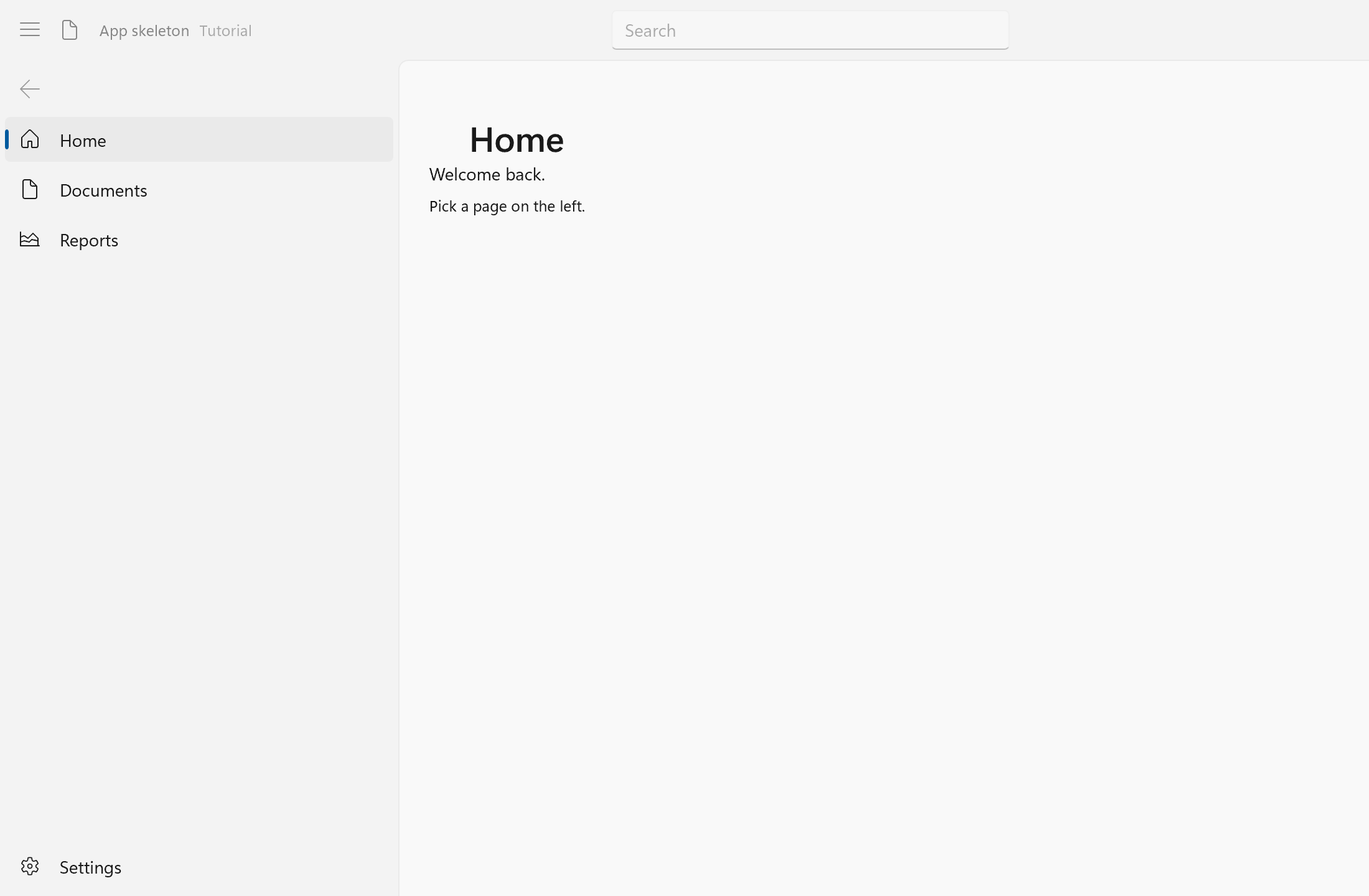
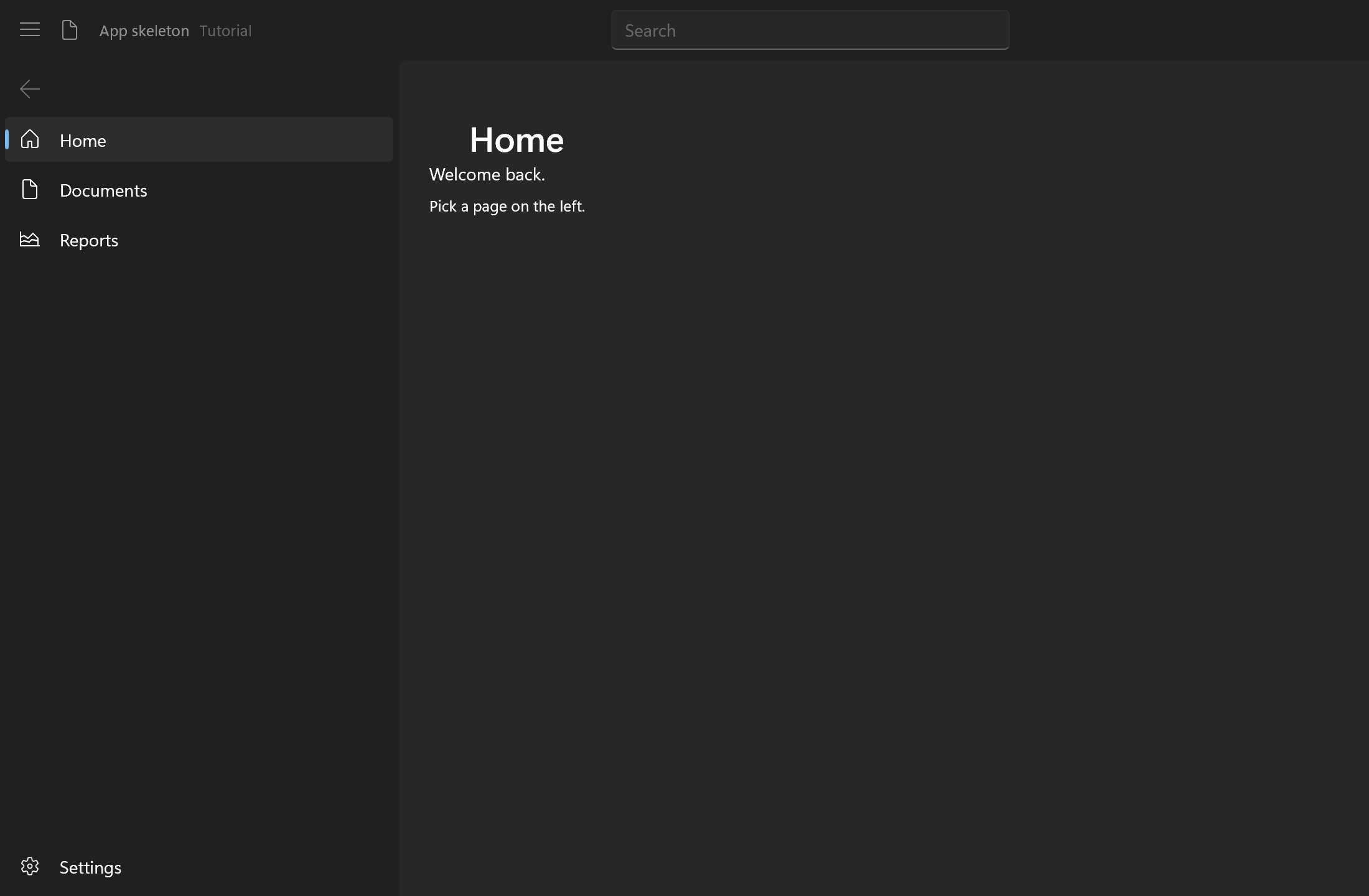
The example is the outline most desktop apps share: a custom title row with a search box, a navigation pane on the left, and pages on the right, one of which holds tabbed documents. The full source is examples/tutorials/09_app_skeleton/main.cpp.
The window's state is small:
ui::Property<bool>               compact{false};
ui::Property<std::string>        header{"Home"};
ui::Property<std::string>        page; // the selected item's key
int                              report_builds = 0;
int                              next_document = 3;
ui::Control<ui::NavigationShell> nav;
ui::Control<ui::Tabs>            documents;
page and header drive what the frame shows, compact is a setting, and the two ui::Control handles are filled in through .control once the tree is built.
NavigationShell as the Frame
ui::NavigationShell is a pane of navigation items beside a content area that shows the selected item's page:
ui::Spec frame = ui::NavigationShell{
    .header                     = header,
    .selected_key               = page,
    .pane_display_mode          = ui::bind(compact,
                                           [](bool on)
                                           {
                                      return on ? ui::NavigationShellPaneDisplayMode::LeftCompact
                                                : ui::NavigationShellPaneDisplayMode::Auto;
                                           }),
    .pane_toggle_button_visible = false,
    .on_selection_changed = [&](const std::string& key) { header = nav->text_at(nav->index_of(key).value_or(0)); },
    .control              = nav,
    .content              = std::move(shared_content),
    .items =
        {
            ui::NavItem{.text = "Home", .key = "home", .icon = ui::IconGlyph{0xE80F}, .content = home_page()},
            ui::NavItem{.text    = "Documents",
                        .key     = "documents",
                        .icon    = ui::IconGlyph{0xE8A5},
                        .content = std::move(documents_page)},
            ui::NavItem{.text = "Reports", .key = "reports", .icon = ui::IconGlyph{0xE9D2}},
        },
};
Each ui::NavItem has a .text, an optional .icon (a Segoe Fluent Icons code point) and usually a .content, the page shown while it is selected. An item with .children becomes a collapsible group; .kind turns one into a section header or a separator. The pane also has room for a search box, a pane header and a footer, and .footer_items pins items to the bottom.
Selection is a key. Each item's .key names it, here "home", "documents" and "reports"; an item without one is keyed by its text. The built-in Settings item at the bottom is "settings" (ui::NavigationShellControl::SettingsKey), and .settings_visible = false removes it. .selected_key is bound two-way to page: it starts on the first item, so page reads "home", and every click writes the new key. .on_selection_changed gets the key too; here it looks up the selected item's text on the control for the header.
The pane adapts to the shell's width with NavigationShellPaneDisplayMode::Auto (the default): Expanded from 1008 DIPs up, Compact (icons only) from 641, Minimal below that (no pane until the toggle button opens one over the content). Left, LeftCompact, LeftMinimal and Top pin a mode. The example binds the mode to the compact setting, so the switch on the Settings page changes the frame while it is running.
The shell has its own hamburger button. This example hides it (.pane_toggle_button_visible = false) because the TitleBar carries one instead.
Tabs for Documents
The Documents page is a ui::Tabs:
ui::Spec home_page()
{
    return ui::VerticalStack{
        .spacing = 8,
        .margin  = ui::Edges{.left = 24, .right = 24, .bottom = 24},
        .content =
            {
                ui::Text{.text = "Welcome back."},
                ui::Text{.text = "Pick a page on the left.", .role = ui::TextRole::Caption},
            },
    };
}

ui::Spec document_editor(std::string text)
{
    return ui::TextBox{
        .placeholder_text = "Start typing",
        .text             = std::move(text),
        .accepts_return   = true,
        .wrapping         = ui::TextWrapping::Wrap,
        .margin           = 12,
    };
}

ui::Spec reports_page(int builds)
{
    return ui::Text{
        .text   = std::format("This page was built {} time(s). Switch away and back to rebuild it.", builds),
        .margin = ui::Edges{.left = 24, .right = 24, .bottom = 24},
    };
}

ui::Spec settings_page(ui::Property<bool>& compact)
{
    return ui::ToggleSwitch{
        .header  = "Compact navigation pane",
        .checked = compact,
        .margin  = ui::Edges{.left = 24, .right = 24, .bottom = 24},
    };
}
ui::Spec documents_page = ui::Tabs{
    .on_add_tab_button_click =
        [&]
    {
        documents->add_tab(std::format("Document {}", next_document++), ui::build(document_editor("")));
        documents->set_selected_index(documents->tab_count() - 1);
    },
    .control = documents,
    .items =
        {
            ui::Tab{.header = "Document 1", .content = document_editor("Tabs keep their content while you switch.")},
            ui::Tab{.header = "Document 2", .content = document_editor("")},
        },
};
Each ui::Tab has a .header, an optional .icon, a .content and a .closable flag. The first tab is selected on its own.
Closing removes the tab. The close button, a middle click and Ctrl+F4 remove the tab and select the one that moved into its place, or the last one. A tab's key is its .key, else its header, and it stays with the tab when the user drags it elsewhere. To ask "save changes?" before a document goes away, set .on_tab_close_requested. It gets the tab's key, and then nothing is removed until the handler calls remove_tab().
Adding is your job. The "+" button shows once there is an .on_add_tab_button_click handler, and clicking it calls the handler. The handler builds the new content with ui::build(), passes it to add_tab() and selects it. Without a handler a fixed set of tabs shows no "+".
Tabs can be reordered by dragging (.can_reorder_tabs, on by default). The tabs keep their content while you switch between them: type into Document 1, open Document 2, come back, and the text is still there.
TitleBar
ui::TitleBar is a row with an icon, a title and subtitle, optional back and pane-toggle buttons, and three slots for your own content: .left_header_content, .content (centered by default) and .right_header_content.
ui::Spec title_bar = ui::TitleBar{
    .title                      = "App skeleton",
    .subtitle                   = "Tutorial",
    .icon                       = AppGlyph,
    .pane_toggle_button_visible = true,
    .on_pane_toggle_requested   = [&] { nav->set_pane_open(!nav->is_pane_open()); },
    .content                    = ui::AutoSuggestBox{.placeholder_text = "Search", .width = 320},
};
The bar takes the AutoSize row of the window's root grid, the frame the rest:
window.set_content(ui::Grid{
    .rows = {ui::AutoSize, 1_fr},
    .content = {ui::Cell{.row = 0, .content = std::move(title_bar)}, ui::Cell{.row = 1, .content = std::move(frame)}},
});
On its own a TitleBar is an ordinary row at the top of the page, under the window's normal caption. It becomes the caption when the window extends its content into the title bar:
ui::Window window{{
    .title = "App skeleton",
    .size  = {1100, 720},
    .style = {.extend_content_into_title_bar = true, .title_bar_height = 48},
}};
With extend_content_into_title_bar on, the OS keeps drawing the minimize, maximize and close buttons and the caption background, and the app lays out its own title row underneath them. title_bar_height = 48 makes the caption band as tall as a TitleBar with content in it.
The bar follows the window it is in. Window::caption_insets() tells it how much room the caption buttons take, so the right header never slides under them, and Window::active() dims it while the window is in the background, as a real caption does. A bar drawn somewhere other than its own window's caption sets .caption_insets and .active itself.
The bar also answers the window's hit testing. Its own background drags the window, and so does anything in .content that is not an enabled, focusable control, such as a label or the empty space around the search box. The back and pane buttons, the two headers and the search box itself take clicks as usual. If an element should behave differently, set_title_bar_drag_region(true) or set_title_bar_drag_region(false) on it overrides the bar's choice.
The pane toggle here reaches the NavigationShell through its .control and calls nav->set_pane_open(!nav->is_pane_open()).
examples/window_chrome goes further, with a borderless frame and the rest of the window styles.
Switching Content
There are two ways to swap the content area, and the example uses both.
Per-item content. Home and Documents carry their own .content. The NavigationShell owns all of those pages for its whole life and only shows the selected one. Switching is cheap and a page keeps its state, which is why the open documents survive a trip to Home and back.
ui::Match. Reports has no .content, and neither does Settings. For those, the shell shows its own .content, and that is a ui::Match:
ui::Spec shared_content = ui::Match<std::string>{
    .value   = page,
    .content = [&](const std::string& key) -> ui::Spec
    {
        if (key == ui::NavigationShellControl::SettingsKey)
        {
            return settings_page(compact);
        }
        if (key == "reports")
        {
            return reports_page(++report_builds);
        }
        return {};
    },
};
A ui::Match<T> takes what to look at in .value, here the page property, and calls .content with it. Whenever the value changes, it throws the old subtree away and builds a new one. Returning an empty ui::Spec is fine and shows nothing, which is what happens for the two keys that have their own page.
The Reports page counts its own builds. Go to Home and back to Reports and the count goes up: the page really was rebuilt. That is the trade-off in one number:
Per-item .content |
ui::Match |
|
|---|---|---|
| Pages alive | All of them | Only the current one |
| State in a page | Survives switching | Lost on every switch |
| Cost of a switch | Selection only | Destroying and building the subtree |
| Good for | Pages the user works in | Pages derived entirely from your model, or many rarely visited ones |
Two rules for ui::Match, both from the rebuild:
- An observer published from inside the subtree through
.controldangles after the next switch. Reach into a switched page only while it is the current one, or keep the state in your model. .contentis stored on the node and runs for the life of the window. It may capture references to state that outlives the window (compactandreport_buildshere), nothing shorter-lived.
The Property equality gate keeps this cheap: assigning the key that is already selected changes nothing and rebuilds nothing.
Keyboard Navigation
The frame gives you keyboard handling without any code:
| Where | Keys |
|---|---|
| Anywhere | Tab and Shift+Tab move between the title bar's buttons and search box, the navigation items, and the controls of the current page. |
| Navigation items | One tab stop. Up and Down move a cursor, Enter or Space selects. Left and Right collapse and expand a group. With .selection_follows_focus enabled, the cursor selects as it moves. In Top mode the arrows are Left and Right. |
| An overlay pane (Minimal, or Compact opened) | Escape or a click on the content closes it. While it is open, Tab stays inside it. |
| Tab strip | One tab stop. Left and Right move between tabs, Enter or Space selects. |
Anywhere inside a Tabs |
Ctrl+Tab and Ctrl+Shift+Tab select the next and previous tab, Ctrl+F4 asks to close the current one. |
Dialogs, Flyouts and Menus adds what floats on top of this frame.