Your First Window
Get the library into a CMake project, open a window with a counter in it, and run the message loop.
The example for this page builds as tutorial_01_first_window.
Get the Library
libwinui is a CMake project whose library target is winui::winui. The simplest way in is to put the repository next to your code (a git submodule, a copy, whatever you prefer) and add it as a subdirectory:
cmake_minimum_required(VERSION 3.21)
project(my_app LANGUAGES CXX)

add_subdirectory(external/libwinui)

add_executable(my_app WIN32 main.cpp)
target_compile_features(my_app PRIVATE cxx_std_23)
target_link_libraries(my_app PRIVATE winui::main)
FetchContent works the same way: declare the repository, call FetchContent_MakeAvailable, then link winui::main as above. An installed copy works with find_package(winui CONFIG REQUIRED) in place of add_subdirectory (Building has the details).
Some details:
WIN32inadd_executablemakes it a GUI program, so no console window opens next to yours.- A
WIN32program normally starts atwWinMain. Linkingwinui::mainlets it start at a plainint main()instead, which is what every tutorial uses. Leave it out if you prefer to writewWinMainyourself. - All strings in libwinui are UTF-8. With MSVC the library adds
/utf-8to your target as well, so a literal like"Grüezi"arrives intact. - To ship a single
.exewith nothing to install, link the C runtime statically: putset(CMAKE_MSVC_RUNTIME_LIBRARY "MultiThreaded$<$<CONFIG:Debug>:Debug>")beforeadd_subdirectory. Otherwise the target machine needs the Visual C++ redistributable. - When libwinui is a subdirectory of another project, its tests and examples are not built. You only get the library.
- Configuring downloads
stb_imageand, on Windows, the C++/WinRT tool, so the first configure needs network access.
The compiler has to speak C++23: MSVC 19.3x, Clang 16+ or GCC 14+. Building has the full list of options.
The Includes
winui/winui.hpp is the only libwinui header an app includes: every control, the layout panels, the specs, ui::Window and ui::run(). It names nothing of the operating system, so there is no <windows.h> and no #ifdef in your code. Everything in it is in namespace ui.
State and a Window
ui::Property<int> is a value that tells whoever is interested when it changes. The counter lives here, once, and everything on screen that shows it is derived from it. State and Bindings covers this in detail.
A ui::Window is the root of the UI tree, and an object your app owns: here a local of main(). Its constructor takes what the window is created with (title, size and more). At this point it is only a C++ object. Nothing is on screen until ui::run().
The state is declared before the window on purpose. Locals are destroyed in reverse order, so the window and its tree go first and never outlive the state they show.
window.set_content(ui::VerticalStack{
    .spacing              = 12,
    .horizontal_alignment = ui::Alignment::Center,
    .vertical_alignment   = ui::Alignment::Center,
    .content =
        {
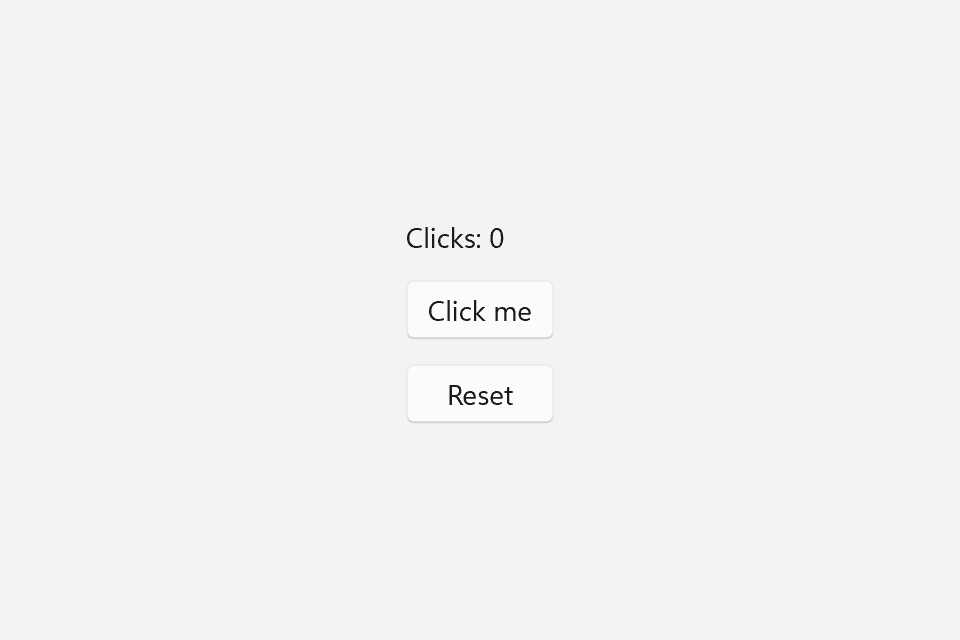
            ui::Text{.text = ui::bind(clicks, [](int n) { return std::format("Clicks: {}", n); })},
            ui::Button{.text = "Click me", .on_click = [&] { ++clicks; }},
            ui::Button{.text = "Reset", .on_click = [&] { clicks = 0; }},
        },
});
This is the declarative surface. ui::VerticalStack, ui::Text and ui::Button are plain structs, filled in with C++20 designated initializers. They describe controls. set_content() takes the description, builds the real controls from it and hands them to the window.
ui::VerticalStackstacks its children top to bottom, 12 DIPs apart (a DIP is a device-independent pixel, 1/96 of an inch). The window gives its content the whole client area..horizontal_alignmentand.vertical_alignmentcenter the stack in it at the size it needs instead.ui::Textshows text. Its.textis abind(...)overclicks, so it shows "Clicks: 0" now and follows every later change. The format string exists exactly once.- The two
ui::Buttons get an.on_clickhandler. Neither touches the label. They only write toclicks, and the label follows.
When the window opens, keyboard focus is on the first control that can take it, here the "Click me" button. Tab and Shift+Tab move between the two buttons, Enter or Space presses the focused one.
The handlers capture by reference with [&]. That is correct here, because clicks lives in main() and outlives the message loop. Components shows where [&] becomes a bug.
Run the Message Loop
ui::run(window) creates the operating system's window for it, with a renderer and everything else it needs, shows it and runs the message loop. It returns when the window is closed. run() only borrows the window: it is a local of main(), so it is destroyed, with its whole tree, when main() returns.
What the window is created with, a ui::WindowOptions, goes into its constructor, again filled in by name, which is why the declaration has two pairs of braces. Leave out a field and you get its default. size is the room the content gets, in DIPs; the frame comes on top of it.
Theme and Backdrop
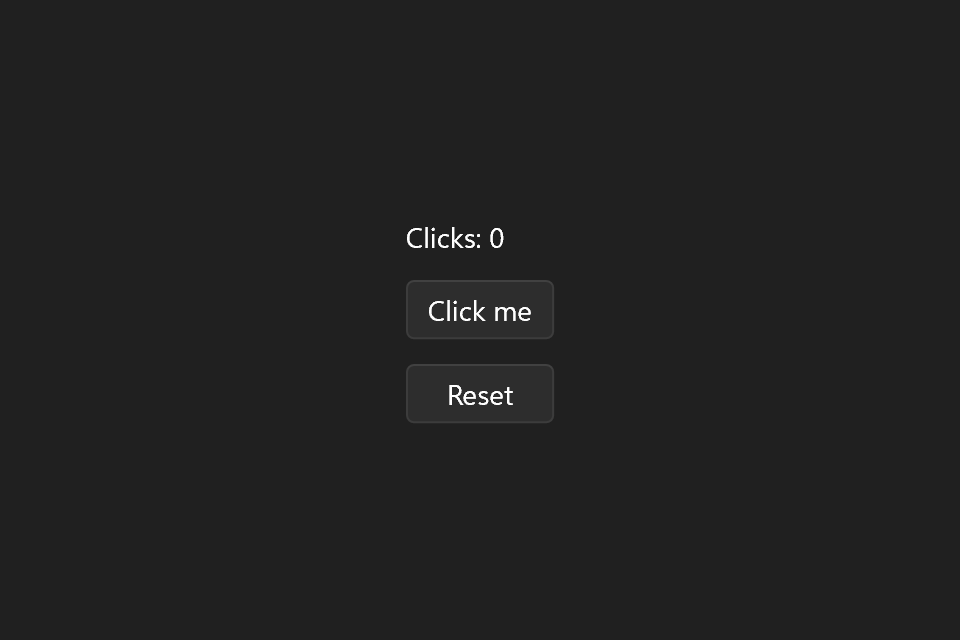
The window follows the system's light or dark mode, accent color and high contrast by default, and Themes shows how to choose them yourself or add Mica.
More Windows
A second window that should go away when the user closes it is handed to the loop with ui::open_window(). It shows the window and destroys it once it has closed, so closing it is all there is to do, from its own buttons too:
auto about = std::make_unique<ui::Window>(ui::WindowOptions{.title = "About", .size = {320, 200}});
ui::Window& w = *about;
about->set_content(ui::Button{.text = "Close", .on_click = [&w] { w.close(); }});
ui::open_window(std::move(about));
window.is_open() is a property that is true while a window is open, so a menu item or a button can follow it. To reach a window later, keep window.ref(). Its get() returns the window, or nullptr once it is gone.
Asking Before Closing
on_closing runs whenever the window is about to close, and returning ui::Cancel keeps it open. A handler that returns nothing, or ui::Proceed, lets it close. It has to decide right away, so to ask the user, show the question, cancel, and close with force_close() once they answered. force_close() closes like close() without asking on_closing again:
window.on_closing([&] {
    if (!document.dirty())
        return ui::Proceed;
    window.show_modal(ui::Dialog{
        .title     = "Save changes?",
        .primary   = {.text = "Save"},
        .secondary = {.text = "Don't save"},
        .close     = {.text = "Cancel"},
        .on_closed = [&](ui::DialogResult result) {
            if (result == ui::DialogResult::Primary)
                document.save();
            if (result != ui::DialogResult::Close)
                window.force_close();
        },
    });
    return ui::Cancel;
});
What You Built
The description turned into this tree of controls:
flowchart TD
    W["Window"] --> S["StackControl (vertical)"]
    S --> T["TextControl"]
    S --> B1["Button: Click me"]
    S --> B2["Button: Reset"]
Note the names: ui::VerticalStack built a ui::StackControl, ui::Text built a ui::TextControl. A control's class name ends in Control, so the two are easy to tell apart: the ui:: struct is what you write, the ...Control is the live object it built.
Ownership is strict and simple. Every node is owned by exactly one parent through a std::unique_ptr: the window owns the stack panel, the stack panel owns its three children. There is no shared_ptr anywhere in the tree. When main() returns, the window is destroyed, and with it the whole tree, top down.
The TextControl also owns its subscription to clicks. When the TextControl goes away, the subscription goes with it, so clicks never calls into a destroyed control.
Next
Layout: stacks, alignment, sizes, grids and scrolling.