Layout
Arrange controls with stacks, alignment, sizes, grids and scrolling.
The example for this page builds as tutorial_02_layout.
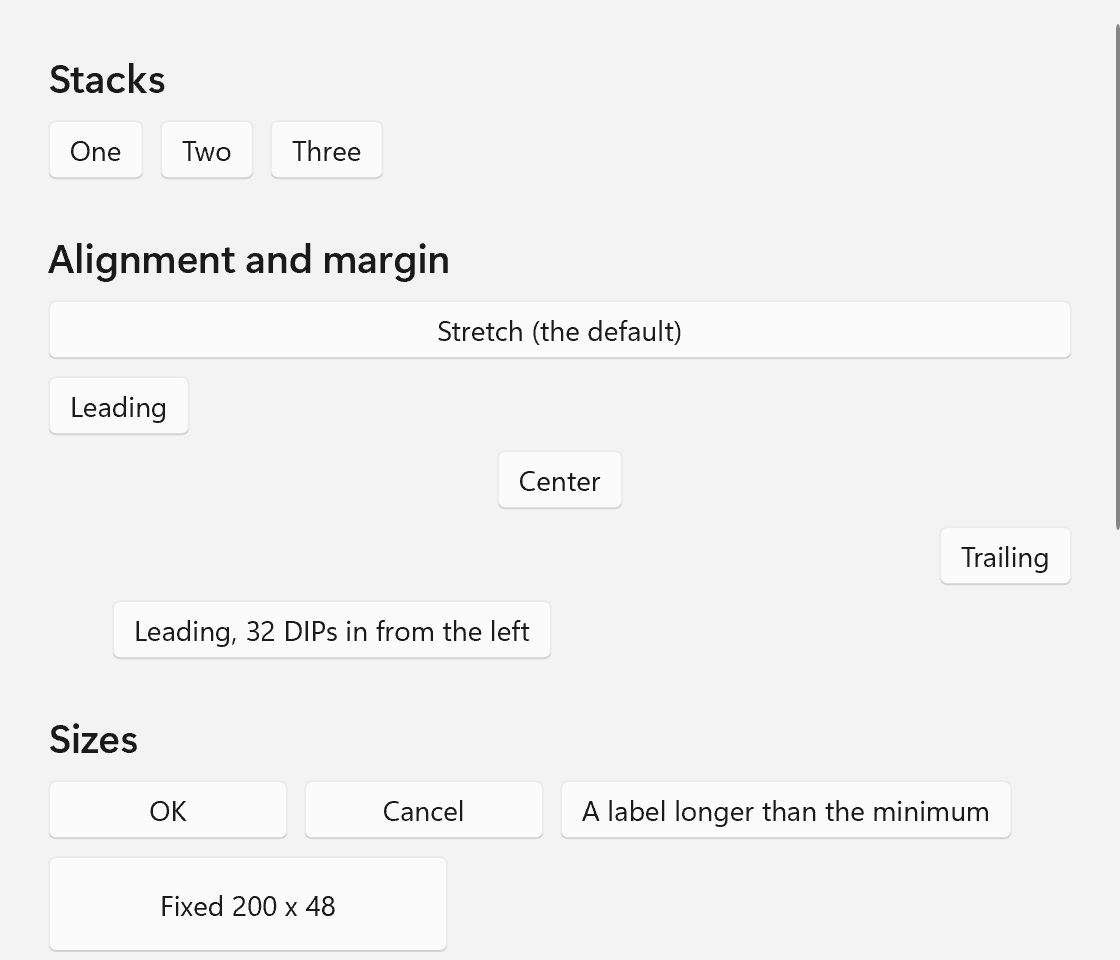
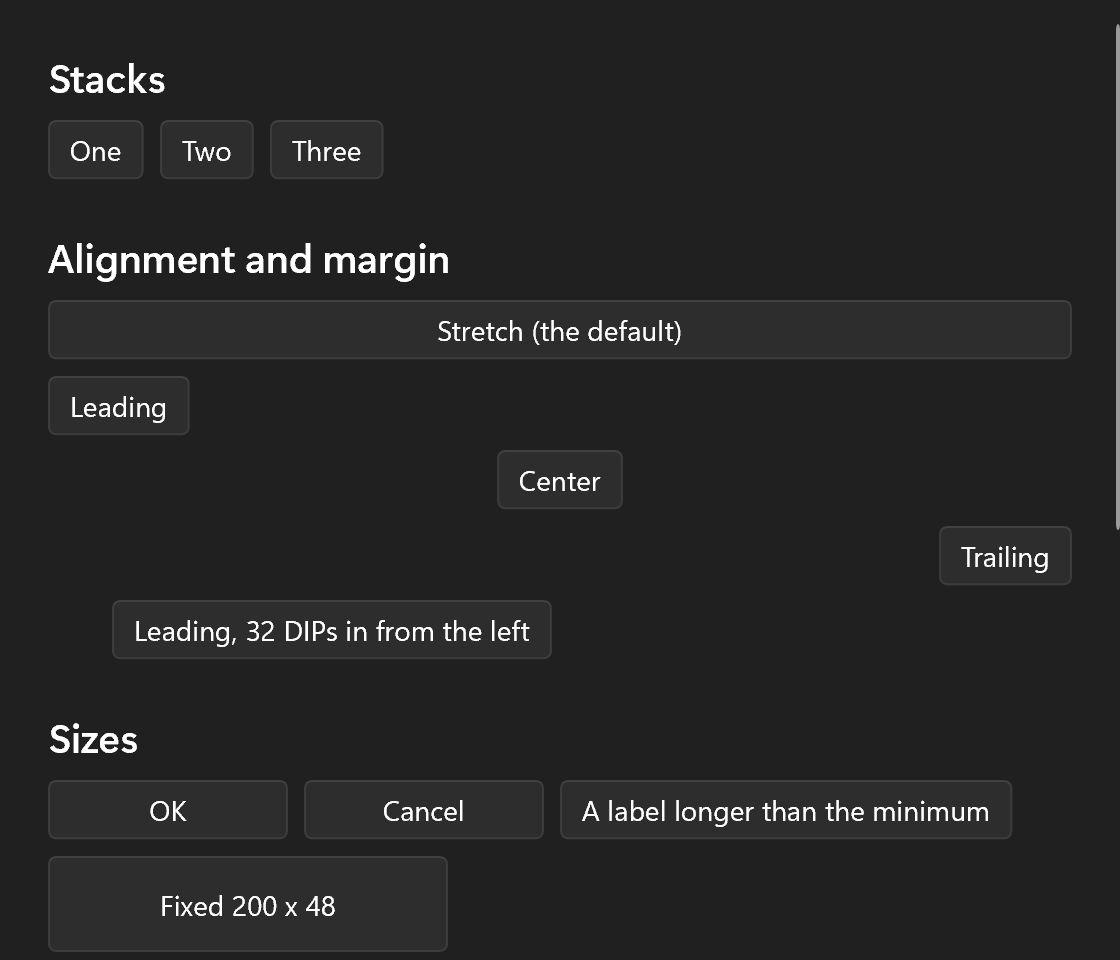
The example for this page builds one scrolling window with five small sections, one per idea. Each section is built into a ui::Spec first and put together at the end. A ui::Spec holds a finished piece of description; for now read it as "a named chunk of the tree". Components explains it properly.
How Layout Works
Layout runs in two passes over the tree:
- Measure. Each parent asks each child how big it wants to be, given the space on offer. A button answers with its text plus padding, a stack panel with the sum of its children.
- Arrange. Each parent then gives each child a slot (a rectangle), and the child positions itself inside it according to its alignment and margin.
Sizes are in DIPs (device-independent pixels, 1/96 of an inch). The window scales them to the display, so a 120 DIP wide button is 120 pixels at 100% and 240 at 200%.
Vertical and Horizontal
ui::Spec stacks = ui::VerticalStack{
    .spacing = 8,
    .content =
        {
            ui::Text{.text = "Stacks", .role = ui::TextRole::Subtitle},
            ui::HorizontalStack{
                .spacing = 8,
                .content =
                    {
                        ui::Button{.text = "One"},
                        ui::Button{.text = "Two"},
                        ui::Button{.text = "Three"},
                    },
            },
        },
};
ui::VerticalStack stacks its children top to bottom, ui::HorizontalStack left to right. Both build the same control, a ui::StackControl; the spec name sets the orientation. .spacing is the gap between two neighbors. It adds nothing around the outside; .padding does, and .border_brush, .border_thickness and .corner_radius draw a frame around the children, as on a ui::Border. The Grid and the WrapPanel have the same four fields.
Along the stack direction a stack panel gives every child as much room as it asks for. Across it, the children are stretched to the panel's width (in a vertical stack) or height (in a horizontal one). .child_alignment changes that for all children at once: Alignment::Leading, Center, Trailing or Stretch, the default.
Note that "as much room as it asks for" means unbounded. A ui::Text with .wrapping = TextWrapping::WrapWholeWords inside a ui::HorizontalStack never wraps, because nothing tells it where the line ends. Only a bounded width wraps, so put wrapping text in a vertical stack, a grid column or give it a .width.
A stack leaves whatever room its children do not need empty at its end. To put that room somewhere else, add a ui::Spacer{}: it takes the leftover, so what comes after it ends up at the far edge. A toolbar with one button on the right is a ui::HorizontalStack with a spacer in front of that button. Several spacers share the room by their .weight.
ui::HorizontalStack{
    .spacing = 8,
    .content = {
        ui::Button{.text = "New"},
        ui::Button{.text = "Open"},
        ui::Spacer{},
        ui::Button{.text = "Settings"},
    },
}
For the same reason a list or a ui::Scroll placed straight in a stack grows as tall as its content and never scrolls. Wrap it in a ui::Fill: a fill is measured with the room the other children leave, so a header, a list and a footer stack up with the footer at the bottom and the list scrolling in between. Several fills share the room by .weight, together with the spacers.
ui::VerticalStack{
    .spacing = 8,
    .content = {
        ui::Text{.text = "Inbox", .role = ui::TextRole::Subtitle},
        ui::Fill{.content = ui::ListView<std::string>{.items = messages}},
        ui::Button{.text = "Compose"},
    },
}
Stacks nest. The "One Two Three" row is a ui::HorizontalStack inside the section's ui::VerticalStack, and that section sits in another ui::VerticalStack further down the file.
Spacing, Margin and Alignment
ui::Spec alignment = ui::VerticalStack{
    .spacing = 8,
    .content =
        {
            ui::Text{.text = "Alignment and margin", .role = ui::TextRole::Subtitle},
            ui::Button{.text = "Stretch (the default)"},
            ui::Button{.text = "Leading", .horizontal_alignment = ui::Alignment::Leading},
            ui::Button{.text = "Center", .horizontal_alignment = ui::Alignment::Center},
            ui::Button{.text = "Trailing", .horizontal_alignment = ui::Alignment::Trailing},
            ui::Button{.text                 = "Leading, 32 DIPs in from the left",
                       .margin               = ui::Edges{.left = 32},
                       .horizontal_alignment = ui::Alignment::Leading},
        },
};
Every spec carries the same set of layout fields, written out flat so they show up in code completion:
| Field | Meaning | Default |
|---|---|---|
margin |
Space around the control, as a Thickness: one number for all four edges, ui::Edges{.left = 32} for named edges, ui::Symmetric{.horizontal = 16, .vertical = 8} for pairs |
none |
width, height |
A fixed size | Unset, which means automatic |
min_width, min_height |
The smallest the control gets | Unset, no minimum |
max_width, max_height |
The largest the control gets | Unset, no limit |
horizontal_alignment, vertical_alignment |
Where the control sits in its slot | Alignment::Stretch |
Alignment has four values. Stretch fills the slot, which is why the first button runs across the whole window. Leading, Center and Trailing keep the control at its own size and put it at the left, the middle or the right (top, middle or bottom for vertical_alignment).
The margin is taken out of the slot before alignment happens. The last button is Leading with a 32 DIP left margin, so it starts 32 DIPs in from where the other buttons start.
A size you write means what it says: .width = 0 is zero wide. Leave a field out to get the automatic size. Every one of these fields also takes a property, so .width = size follows a ui::Property<float> as it changes.
Minimum Sizes
ui::Spec sizes = ui::VerticalStack{
    .spacing = 8,
    .content =
        {
            ui::Text{.text = "Sizes", .role = ui::TextRole::Subtitle},
            ui::HorizontalStack{
                .spacing = 8,
                .content =
                    {
                        ui::Button{.text = "OK", .min_width = 120},
                        ui::Button{.text = "Cancel", .min_width = 120},
                        ui::Button{.text = "A label longer than the minimum", .min_width = 120},
                    },
            },
            ui::Button{.text = "Fixed 200 x 48", .width = 200, .height = 48, .horizontal_alignment = ui::Alignment::Leading},
            ui::Button{.text = "Stretched, but at most 320 wide", .max_width = 320},
        },
};
The three buttons in the row all have .min_width = 120. "OK" and "Cancel" would be narrower on their own, so they grow to 120 DIPs and line up. The third label is longer than 120 DIPs, and a minimum never shrinks anything, so it keeps its natural width.
The rules measure applies:
- The space on offer is pulled into the
[min, max]range before the control measures itself. - Whatever size the control asks for is then clamped to that range.
widthandheightpin both ends of the range to one value, as long as that value lies between the minimum and the maximum.
The last button shows a detail that surprises people coming from CSS. It stretches, but .max_width = 320 stops it at 320 DIPs, and the leftover space is split evenly on both sides. A stretched control that hits its maximum ends up centered in its slot.
Grid
ui::Spec grid = ui::VerticalStack{
    .spacing = 8,
    .content =
        {
            ui::Text{.text = "Grid", .role = ui::TextRole::Subtitle},
            ui::Grid{
                .columns        = {120_dip, 1_fr, ui::AutoSize},
                .rows           = {ui::AutoSize, ui::AutoSize, ui::AutoSize},
                .row_spacing    = 8,
                .column_spacing = 12,
                .content =
                    {
                        ui::Cell{.row     = 0,
                                 .column  = 0,
                                 .content = ui::Text{.text = "Name", .vertical_alignment = ui::Alignment::Center}},
                        ui::Cell{.row = 0, .column = 1, .content = ui::TextBox{.placeholder_text = "Ada Lovelace"}},
                        ui::Cell{.row     = 1,
                                 .column  = 0,
                                 .content = ui::Text{.text = "Email", .vertical_alignment = ui::Alignment::Center}},
                        ui::Cell{.row = 1, .column = 1, .content = ui::TextBox{.placeholder_text = "ada@example.com"}},
                        ui::Cell{.row = 0, .column = 2, .row_span = 2, .content = ui::Button{.text = "Look up"}},
                        ui::Cell{.row         = 2,
                                 .column      = 1,
                                 .column_span = 2,
                                 .content = ui::Text{.text = "This cell spans two columns.", .role = ui::TextRole::Caption}},
                    },
            },
        },
};
ui::Grid lays its children out in rows and columns. .columns and .rows list the size of each track, and there are three kinds:
| Written as | Meaning |
|---|---|
120_dip |
Exactly 120 DIPs |
1_fr, 2_fr |
A share of the space left over after the other tracks, by weight |
ui::AutoSize |
As big as the largest content in the track |
_dip stands for device-independent pixels, the unit every size in libwinui is in: 1/96 of an inch, so one physical pixel at 100 % scaling and two at 200 %. _fr stands for a fraction of the remaining space. 1_fr and 2_fr next to each other split the leftover space one to two.
ui::minmax(200_dip, 1_fr) keeps a track between two sizes: a fraction of the space that never gets narrower than 200 DIPs. A ui::Splitter placed in a track of its own between two others lets the user drag those two tracks wider and narrower, within their limits.
The _dip and _fr literals live in namespace ui, so the example makes them available with the two using declarations at the top.
Each child goes into .content as a ui::Cell, which says where it goes (.row, .column, both counted from 0) and how many tracks it covers (.row_span, .column_span, 1 by default). In the example:
- The labels sit in the fixed 120 DIP column, centered vertically next to their text box with
.vertical_alignment = Alignment::Center. - The text boxes take the
1_frcolumn, so they grow and shrink with the window. - "Look up" sits in the
AutoSizecolumn and spans both rows. Its column is exactly as wide as the button. - The caption in the last row spans the last two columns.
.row_spacing and .column_spacing put a gap between tracks, the same way .spacing does in a stack. A list left empty is one 1_fr track, so a ui::Grid with no .columns is a single column that fills the width.
ui::Cell has .content as its last field, and so does every other spec with children. That is a rule of the whole API. C++ requires designated initializers in declaration order, and children always come last.
Name Deep Subtrees
Very deep nesting of specs in one expression compiles slowly on MSVC. Building an inner part into a named ui::Spec first and placing that helps, and it also splits a long page into readable parts.
Canvas: Exact Positions
// A dialog laid out by coordinates, the way a resource editor would have saved it.
ui::Spec canvas = ui::VerticalStack{
    .spacing = 8,
    .content =
        {
            ui::Text{.text = "Canvas", .role = ui::TextRole::Subtitle},
            ui::Canvas{
                .width  = 360,
                .height = 112,
                .content =
                    {
                        ui::CanvasItem{.left = 0, .top = 6, .content = ui::Text{.text = "Find what:"}},
                        ui::CanvasItem{.left = 80, .top = 0, .content = ui::TextBox{.width = 180}},
                        ui::CanvasItem{.left = 272, .top = 0, .content = ui::Button{.text = "Find Next", .width = 88}},
                        ui::CanvasItem{.left = 272, .top = 40, .content = ui::Button{.text = "Cancel", .width = 88}},
                        ui::CanvasItem{.left = 0, .top = 46, .content = ui::CheckBox{.text = "Match case"}},
                        ui::CanvasItem{.left = 0, .top = 80, .content = ui::CheckBox{.text = "Wrap around"}},
                    },
            },
        },
};
Stacks and grids work out where things go. With ui::Canvas every child says where it sits, as .left and .top in DIPs from the canvas's top-left corner, and stays there whatever the window does. Use it when the positions are the design, such as a diagram, a game board or a form ported from a dialog resource.
Three things to know:
- A canvas does not size to its children. Give it a
.widthand a.height, or put it in a slot that stretches it. A child placed outside is still drawn. - A child is as large as it asks to be. Give it a
.width(and.height) for an exact size, as the buttons here have. - Children overlap in the order they are written, and
.z_indexputs one on top..left,.topand.z_indexall take aui::bind(), so a position can follow aProperty.
The coordinates are DIPs, so the layout keeps its proportions on a display at 150 % or 200 % scaling. What a canvas cannot do is adapt: a longer translation or a larger font does not push the next control along. For a UI that should survive either, use a ui::Grid with fixed _dip tracks where you want exact sizes and let the rest flow.
Scroll
window.set_content(ui::Scroll{
    .content =
        ui::VerticalStack{
            .spacing = 24,
            .margin  = 24,
            .content =
                {
                    std::move(stacks),
                    std::move(alignment),
                    std::move(sizes),
                    std::move(grid),
                    std::move(canvas),
                },
        },
});
ui::Scroll builds a ui::ScrollControl around exactly one child, its .content. By default the content gets the viewport's width and as much height as it wants, and a vertical scroll bar shows up once the content is taller than the window. Make the window small and scroll with the mouse wheel or the scroll bar.
.content_orientation changes which axis is free: ScrollContentOrientation::Horizontal, Both or None. The scroll bar visibility and the zoom are fields as well. .horizontal_offset, .vertical_offset and .zoom_factor take a ui::Property<float> two-way: the user's scrolling writes the property, and writing the property moves the view there at once.
The whole page sits inside the ui::Scroll, and the outer ui::VerticalStack puts a 24 DIP margin around everything. The five sections go in as std::move(stacks) and so on. A ui::Spec owns the controls it built, so it is moved into its parent, never copied.
Next
State and Bindings: write state down once and let the UI follow it.