Events and Commands
Handle input, and share one action between several triggers.
The example for this page builds as tutorial_04_events_and_commands.
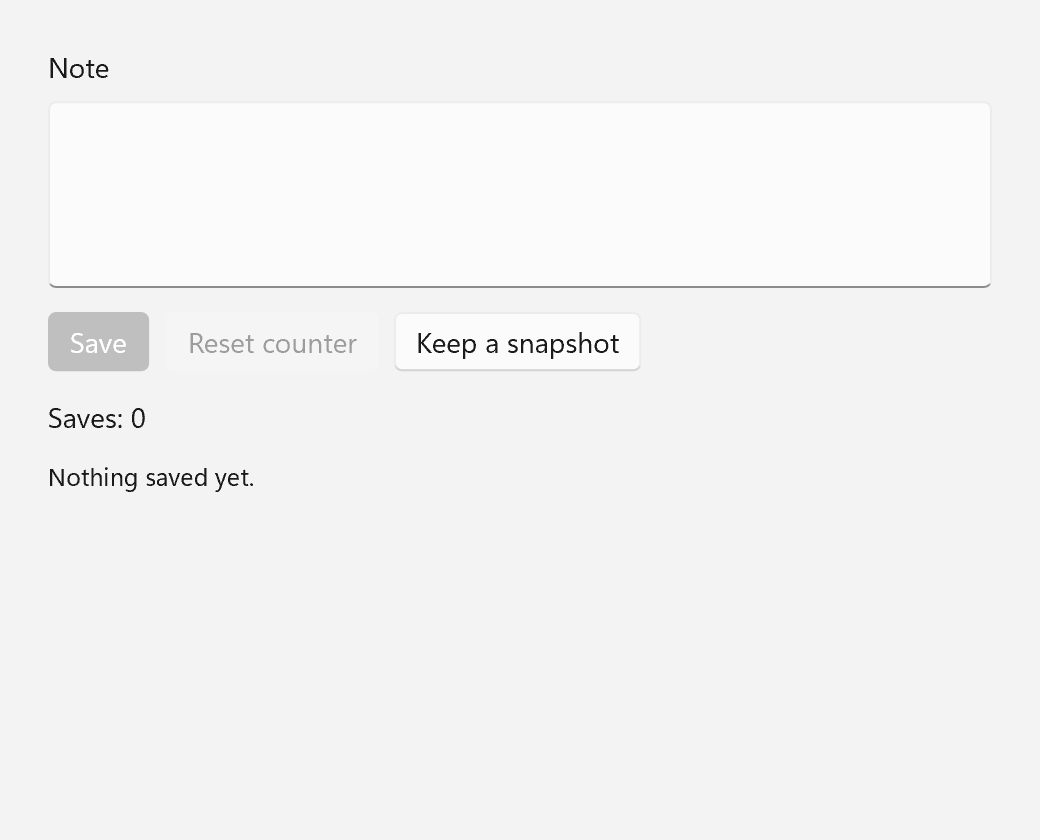
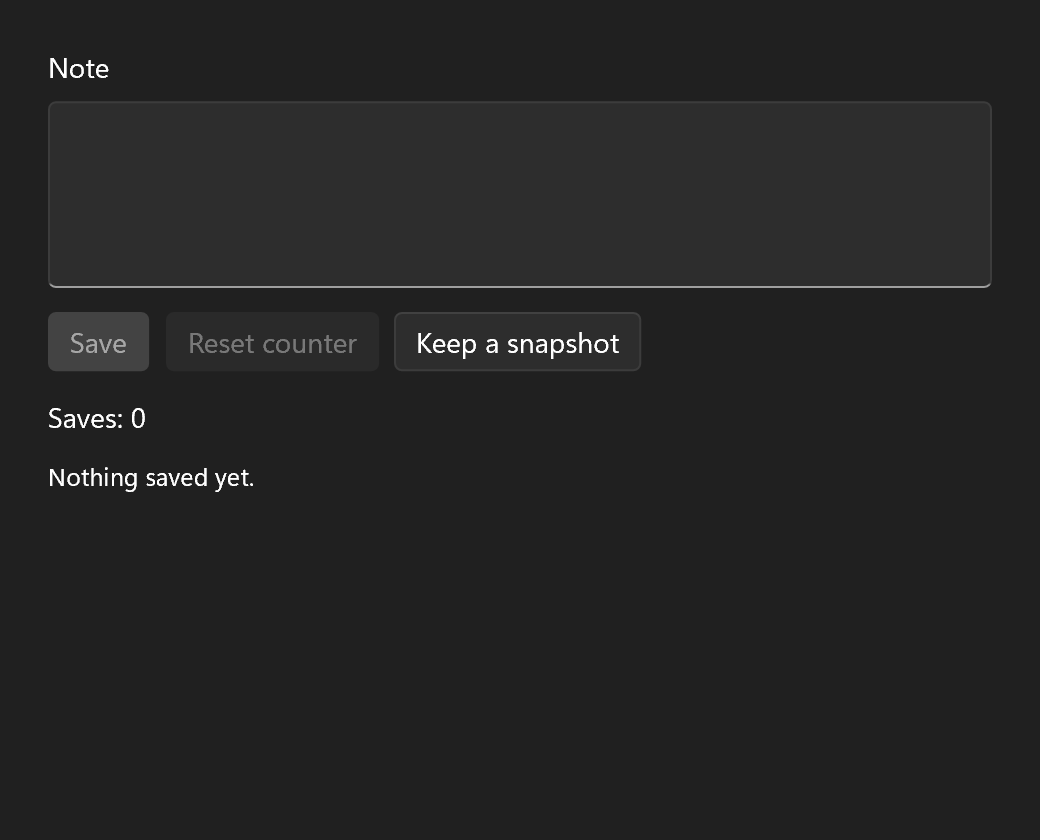
The example for this page is a small note editor. It has a Save action that is only available while there are unsaved changes, reachable from a button and from Ctrl+S, plus a couple of buttons that show how handlers work.
on_* Handlers
Every event a spec offers is a field whose name starts with on_: on_click, on_text_changed, on_value_changed, on_checked_changed, on_selection_changed and so on. You set the ones you care about and leave the rest out.
ui::Spec page = ui::VerticalStack{
    .spacing = 12,
    .margin  = 24,
    .content =
        {
            ui::TextBox{
                .header          = "Note",
                .accepts_return  = true,
                .height          = 120,
                .on_text_changed =
                    [&](const std::string& text) {
                        note  = text;
                        dirty = true;
                    },
            },
            ui::HorizontalStack{
                .spacing = 8,
                .content =
                    {
                        ui::Button{.text = "Save", .variant = ui::ButtonVariant::Accent, .command = save},
                        ui::Button{
                            .text     = "Reset counter",
                            .enabled  = ui::bind(saves, [](int n) { return n > 0; }),
                            .on_click = [&] { saves = 0; },
                        },
                        ui::Button{
                            .text     = "Keep a snapshot",
                            .on_click = [&, kept = std::make_unique<std::vector<std::string>>()] {
                                kept->push_back(note.get());
                                status = std::format("{} snapshots kept.", kept->size());
                            },
                        },
                    },
            },
            ui::Text{.text = ui::bind(saves, [](int n) { return std::format("Saves: {}", n); })},
            ui::Text{.text = status, .role = ui::TextRole::Caption},
        },
};

// Ctrl+R works while focus is anywhere in the page, which here is the whole window.
window.set_content(ui::Shortcuts{.items = {std::move(reset_saves)}, .content = std::move(page)});
A handler receives what the event is about, if anything: the new text for on_text_changed, the new value for a slider, nothing at all for a click. ui::Action is the name for the common void() shape.
Handlers run when the event happens, never while the tree is being built. Every build() first applies all values and bindings and only then installs the handlers, so seeding a check box with true does not fire its on_checked_changed. Handlers only ever run because the user (or your code) did something.
Handlers Are Move-Only
The handler fields are ui::Callback<Sig>, which is std::move_only_function<Sig>. That matters when a handler owns something:
ui::Button{
    .text     = "Keep a snapshot",
    .on_click = [&, kept = std::make_unique<std::vector<std::string>>()] {
        kept->push_back(note.get());
        status = std::format("{} snapshots kept.", kept->size());
    },
},
The lambda owns a std::unique_ptr to the list of snapshots it keeps. A std::unique_ptr cannot be copied, so neither can the lambda, and std::function refuses to hold it with a compile error. std::move_only_function holds it without complaint. Handlers that own a dialog, a buffer or a COM pointer are common, and they should not need a shared_ptr just to fit the handler type.
A spec is therefore move-only as well. You build it once, in place, or move it.
Command
Often the same action can be started from several places: a button, a menu item, a toolbar button, a keyboard shortcut. Each of those needs to run the same code and needs to be disabled at the same moments. Writing that once per trigger is how they drift apart. A command writes it once.
ui::Command save{
    .text        = "Save",
    .shortcut    = ui::Ctrl + ui::Key::S,
    .description = "Save the note (Ctrl+S)",
    .enabled     = dirty,
    .execute =
        [&]
    {
        ++saves;
        dirty  = false;
        status = std::format("Saved {} characters.", note->size());
    },
};
ui::Command is a plain struct:
| Field | Meaning |
|---|---|
text |
Text a menu item or app-bar button shows when it has none of its own |
icon |
Icon for the same controls |
shortcut |
A shortcut such as Ctrl+S, which fires while a control using the command is in the window |
description |
Help text, used as the tooltip of a button that has none |
enabled |
Whether it may run right now; true by default |
execute |
What the command does |
A control points at a command with .command = save. The button then runs save when clicked (after its own on_click, if it has one), and is disabled while the command is. Hover the Save button in the example and you get the description as its tooltip. Press Ctrl+S and the button runs the command, wherever the focus is.
The controls refer to the command without owning it, the way a binding refers to a property. Either may go first: a control whose command was destroyed acts as if it had none.
Every field takes a plain value or a property, like a spec field. .enabled = dirty makes the command follow dirty, and every control using it follows the command. Typing in the note sets dirty and the Save button lights up. Saving clears it, and the button grays out again. A bound label or icon works the same way: change the property and every menu item and app-bar button showing the command updates.
Calling a command yourself is save(). It does nothing while the command is disabled. save.current() holds what every field says right now, so save.current().enabled asks without running it.
One command can also serve several targets. A control's .command_parameter is handed to execute, which may take a std::string_view for it or leave it out of its signature. So a "Remove" command on every row of a list can receive the row's text and know which one to remove.
Enablement
There are two ways to make a control's enabled state follow your state:
- Bind
.enabled. The "Reset counter" button has.enabled = bind(saves, [](int n) { return n > 0; }), so it grays out once the counter is back at 0. This is the way for anything that is not shared. - Use a command. The Save button gets its enablement from
save.enabled, which followsdirty. This is the way for an action several controls offer.
The two combine. A button with both .enabled and .command is enabled only while both allow it. A disabled command disables the button whatever .enabled says, and .enabled = false disables it whatever the command says.
A disabled control grays out and ignores input, and a disabled button or text box drops out of the Tab order.
Keyboard Handling
Most keys are handled by the controls themselves, so you get them for free:
| Key | What happens |
|---|---|
| Tab, Shift+Tab | The window moves focus to the next or previous control |
| Enter | Press the focused button |
| Space | Press the focused button, or toggle the focused check box or switch |
| Arrow keys | Move within a list, a slider, a menu or text |
| Escape | Close the topmost popup, flyout or dialog |
| Ctrl+C, Ctrl+V, Ctrl+Z ... | Edit in the focused text box |
For your own shortcuts, write a ui::Shortcut and give it to a ui::Shortcuts around the part of the window it belongs to:
ui::Shortcut reset_saves{
    .keys = ui::Ctrl + ui::Key::R,
    .on_pressed =
        [&]
    {
        if (saves.get() == 0)
        {
            return ui::NotHandled; // nothing to reset: Ctrl+R goes on
        }
        saves = 0;
        return ui::Handled;
    },
};
The tree above ends with ui::Shortcuts{.items = {std::move(reset_saves)}, .content = std::move(page)}, so Ctrl+R resets the counter. A shortcut fires while keyboard focus is anywhere inside the .content of its ui::Shortcuts. Around the whole page, that is the whole window. .on_pressed may return ui::NotHandled: here it does while the counter is already at 0, and the key goes on as if the shortcut did not exist. One that returns nothing counts as handled.
An action that has a command needs none of this: its .shortcut fires for as long as a control using the command is in the window, as Ctrl+S does for Save. A command no control shows is registered with the window instead, ui::Subscription keep = window.add_command(reload);, and its shortcut fires while the window has focus.
When a key is pressed, the window offers it around in a fixed order, and the first one to use it ends the trip:
- The window's own key preview, if you set one with
window.on_key_preview(...). It sees every key first and is meant for truly window-wide keys, F11 for full screen being the classic. - Tab and Shift+Tab, which move focus.
- Enter on a focus scope steps into it, and Escape leaves an entered scope or closes the open dialog or popups.
- The focused control, then each of its parents, innermost first.
- The shortcuts of the focused element, then of each of its parents, innermost first.
- App-wide shortcuts from commands, menus and command bars (
Command::shortcut). The focused control had its turn in step 4, so a text box's Ctrl+C copies text rather than triggering a Copy menu item. - An arrow key nothing used moves focus to the nearest control in that direction.
Next
A Form: the first four pages put together.