Themes
How a window picks its colors, follows light and dark mode, and gets Mica behind it.
Follow the System
A window left alone follows the operating system. It is light or dark as the user's app mode says, uses the user's accent color and switches to their contrast theme when high contrast is on. Every change applies live, while the window is open.
The theme is a ui::ThemeRequest in WindowOptions::theme. Every field left at its default means "follow the system".
Light, Dark and High Contrast
ThemeRequest::mode takes a ui::ThemeMode:
| Mode | Effect |
|---|---|
System |
Follows the OS light or dark setting. The default. |
Light |
Always light. |
Dark |
Always dark. |
HighContrast |
The OS's contrast theme while one is on, otherwise a built-in contrast palette. |
A contrast theme the user turned on in Windows always wins, whatever mode says.
The Accent Color
accent_override replaces the user's accent with your brand color. The lighter and darker shades controls use are derived from it.
ui::Window window{{
    .title = "My App",
    .theme = ui::ThemeRequest{.accent_override = ui::Color::from_argb(0xFFE81123)},
}};
Your Own Colors
A theme's colors are read-only. For more than an accent, build a whole theme from a set of role colors with ui::Theme::fluent(colors) and pin it. Start from a theme's own colors and change the roles you need: the rest of the theme follows them, so a new accent also recolors selections and the accent button's hover and pressed states.
ui::ThemeColors colors = ui::Theme::light().colors();
colors.accent          = ui::Color::from_argb(0xFF8764B8);
colors.background      = ui::Color::from_argb(0xFFF5F0FA);
window.pin_theme(ui::Theme::fluent(colors));
ui::Theme::classic(colors, hot_track, font_family) does the same for the Windows 95 to 2000 look. A pinned theme no longer follows the system's light and dark mode.
Theme Eras
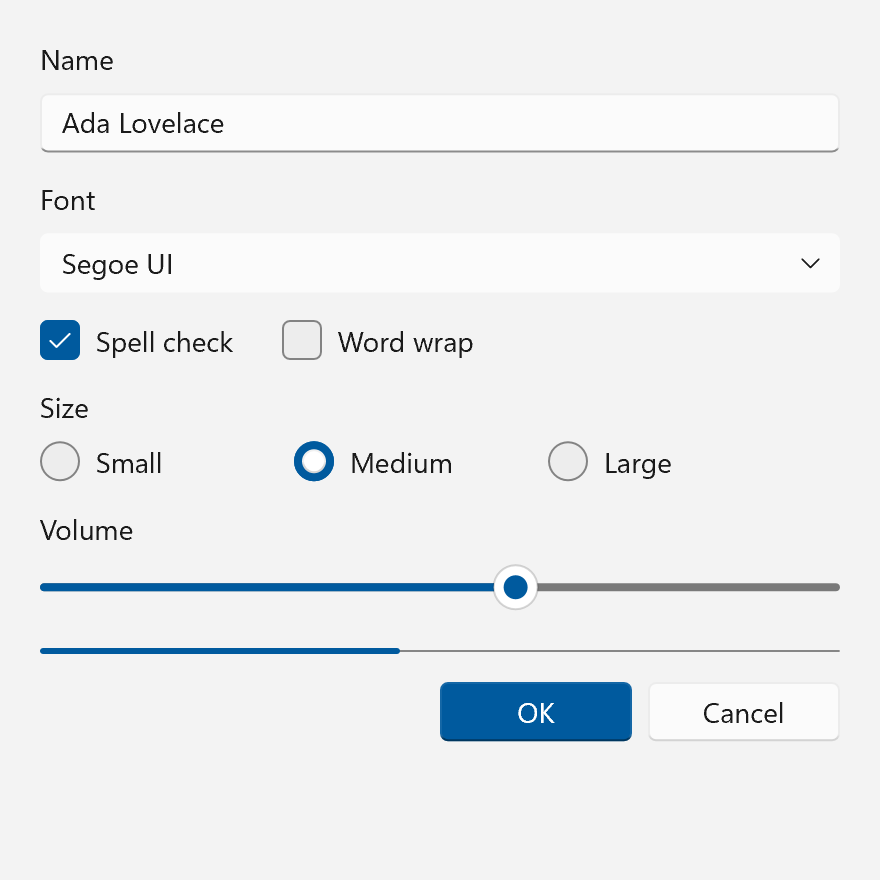
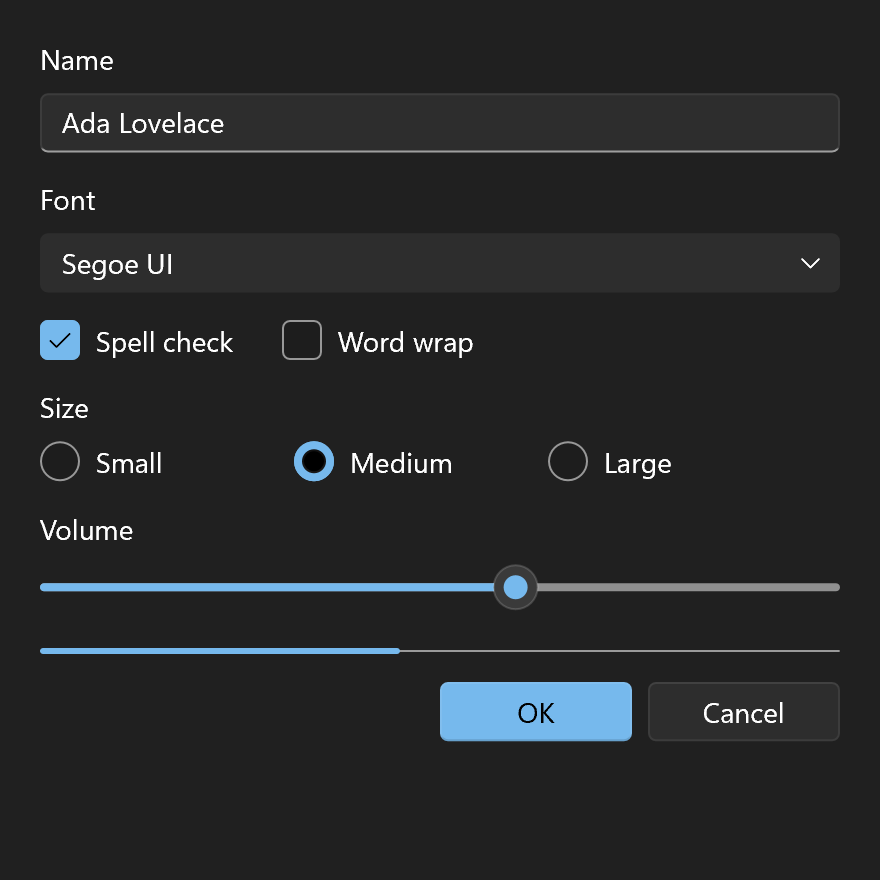
ThemeRequest::variant picks the design the controls are drawn in. The default is ThemeVariant::System, the look of the Windows the app runs on: Fluent2 on Windows 11 and Fluent on Windows 10. Name Fluent2 to get Windows 11's look on Windows 10 too.
| Variant | Looks like | Light and dark |
|---|---|---|
System |
the running Windows, 11 or 10 | yes |
Fluent2 |
Windows 11 | yes |
Fluent |
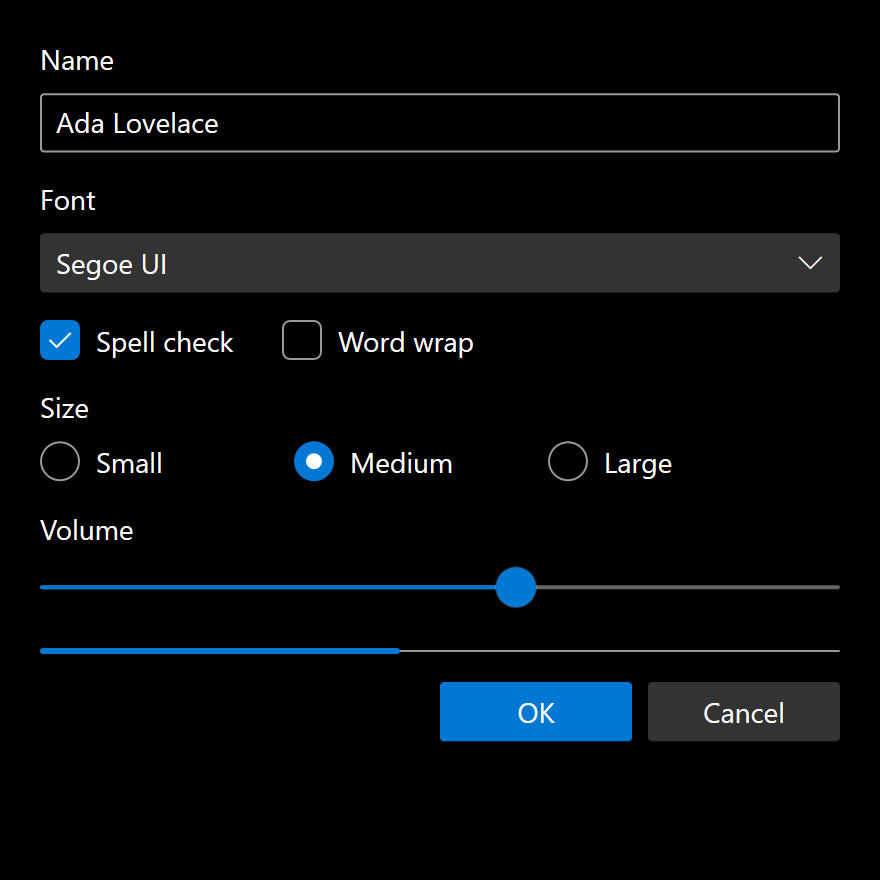
Windows 10, 2017 to 2021 | yes |
Mdl2 |
Windows 10, 2015 to 2017 | yes |
Metro |
Windows 8 and 8.1 | yes |
Aero |
Windows Vista and 7 | light only |
Luna |
Windows XP | light only |
Windows9x |
Windows 95 to 2000 | light only |
Windows3x |
Windows 3.0 and 3.1 | light only |
Windows1x |
Windows 1.x and 2.x | light only |
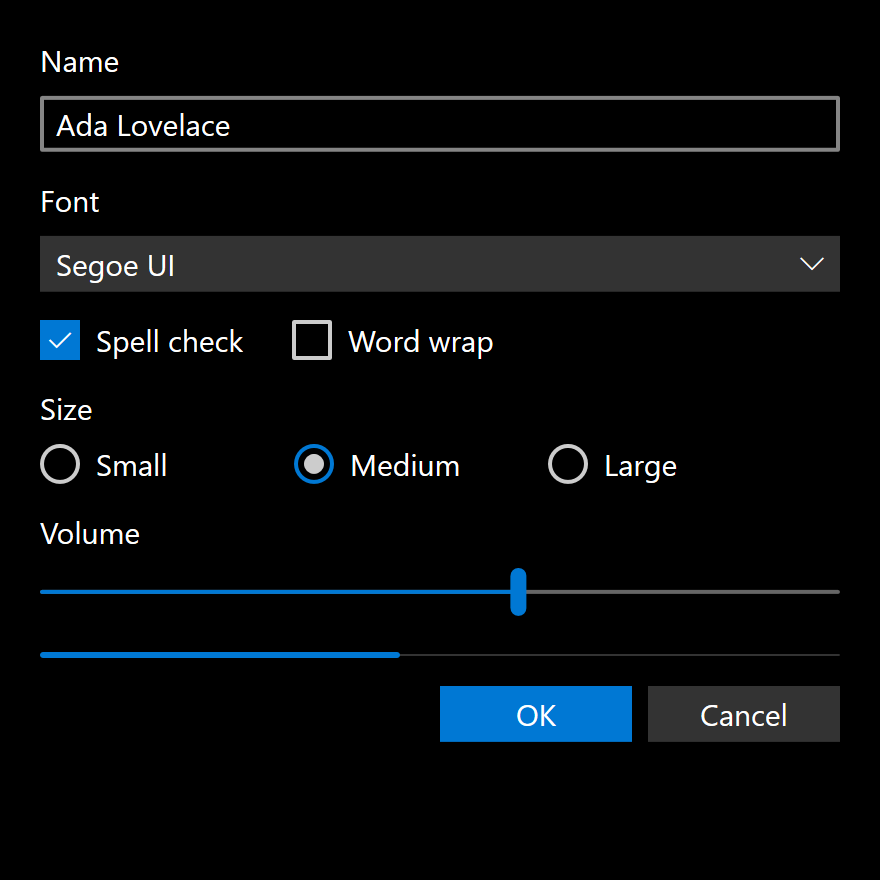
The same form in each variant. The older eras draw their own window frame when the window is opened with Frame::Themed. Mdl2, Fluent and Fluent2 keep the system's frame, which isn't shown here.
Fluent2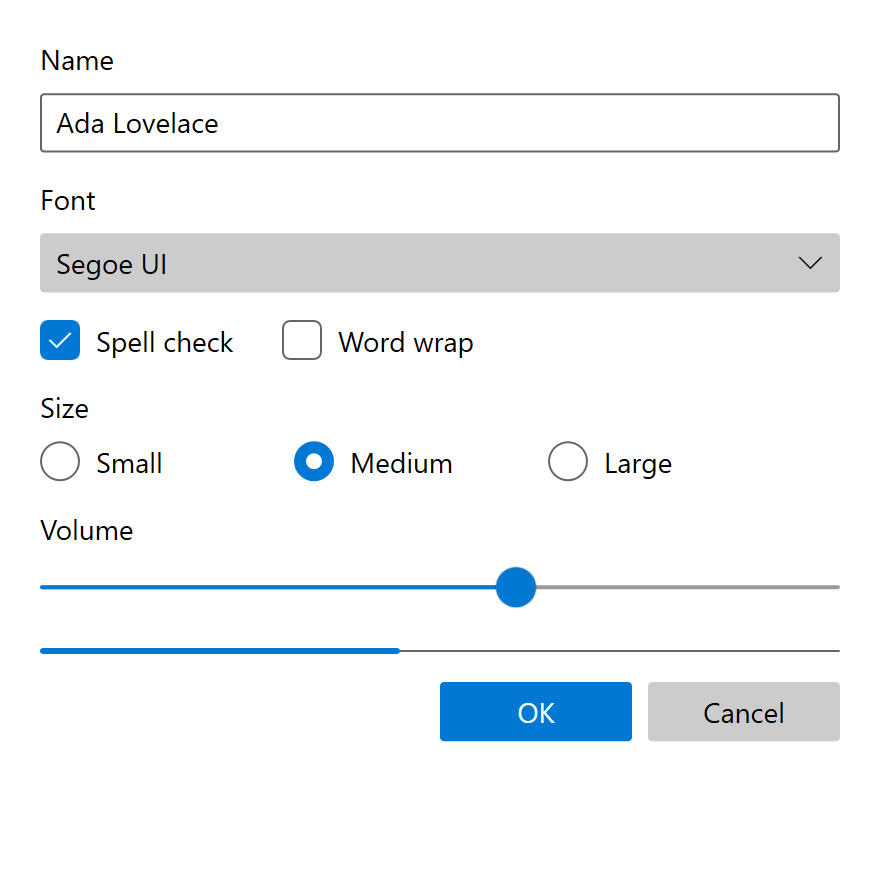
Fluent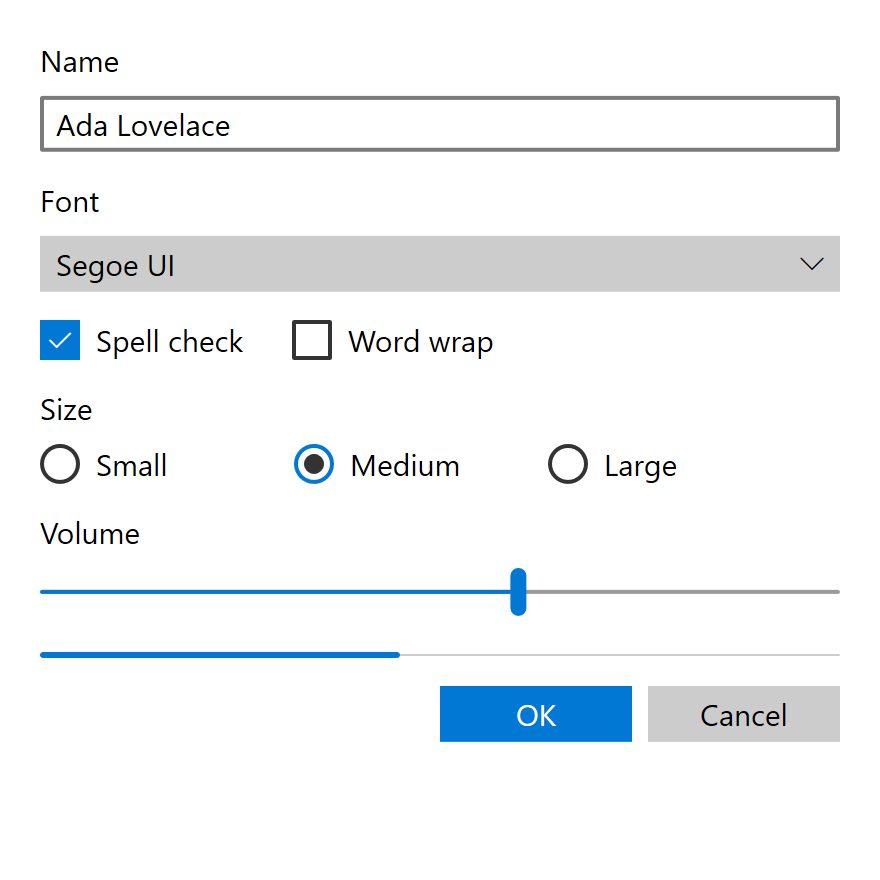
Mdl2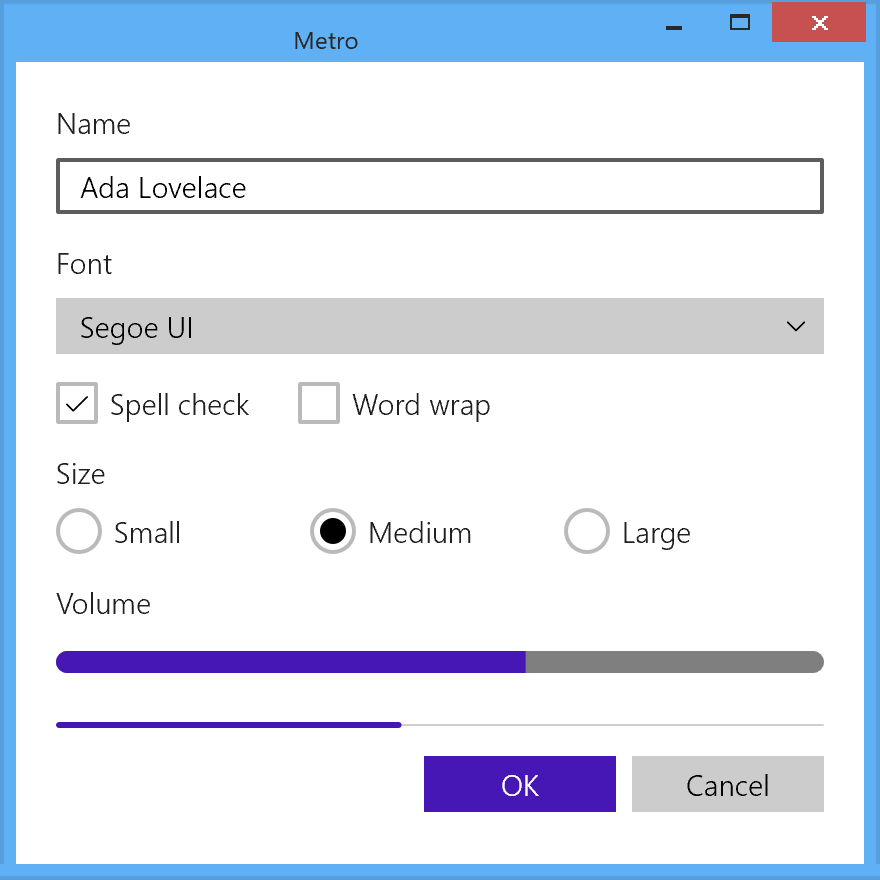
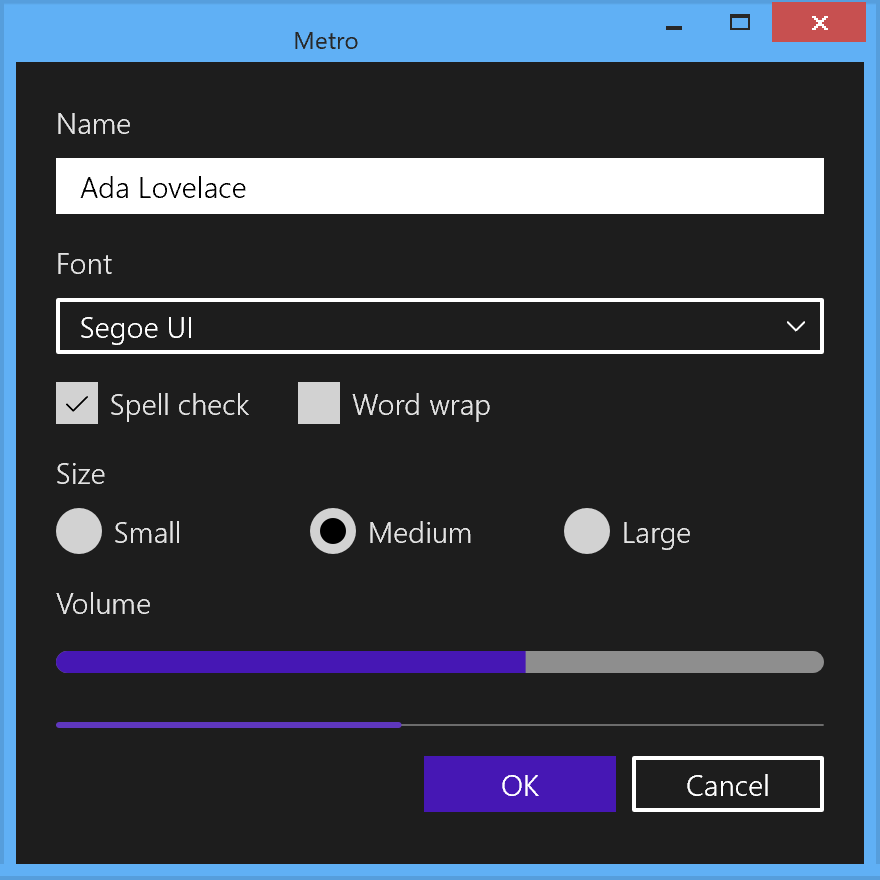
Metro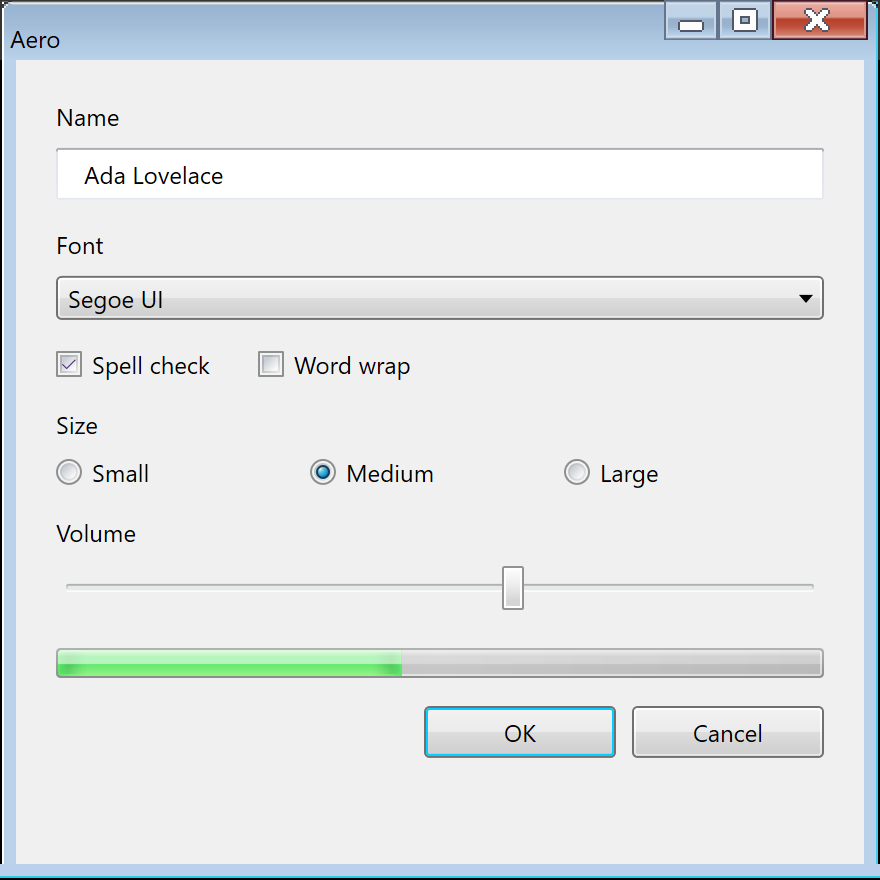
Aero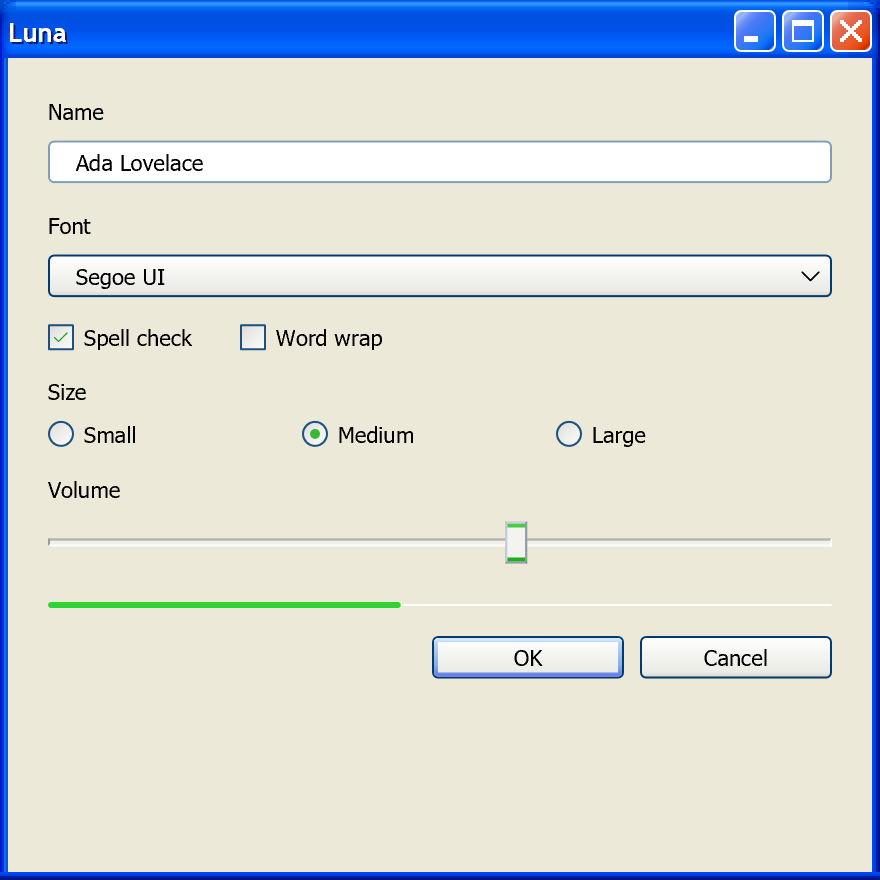
Luna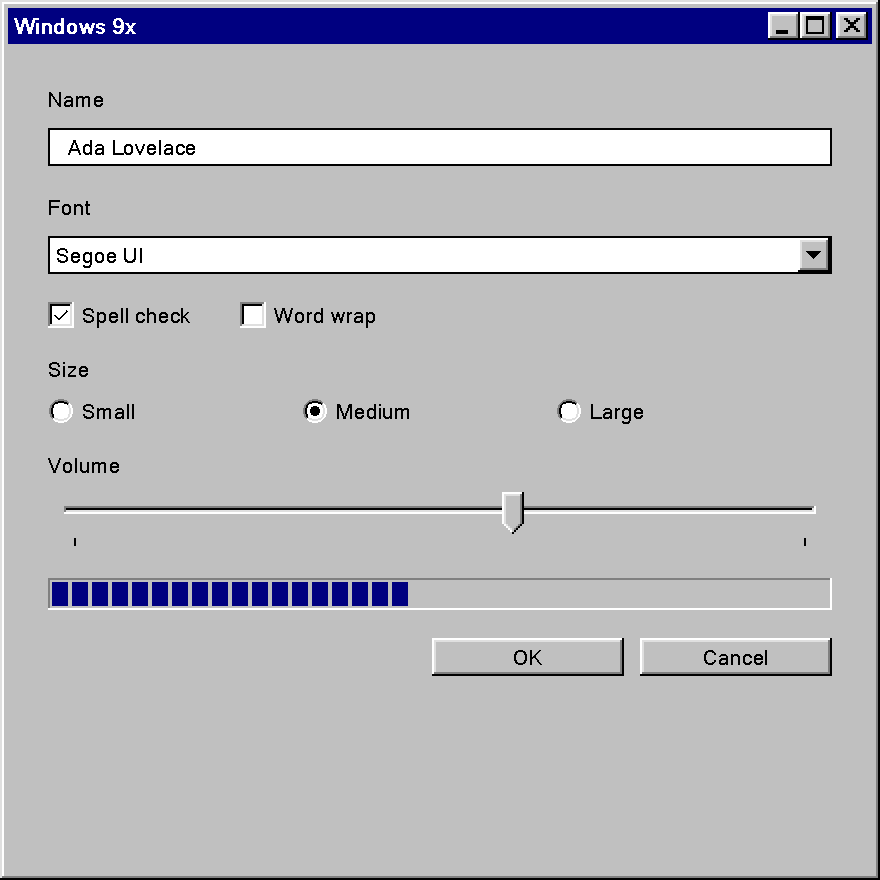
Windows9x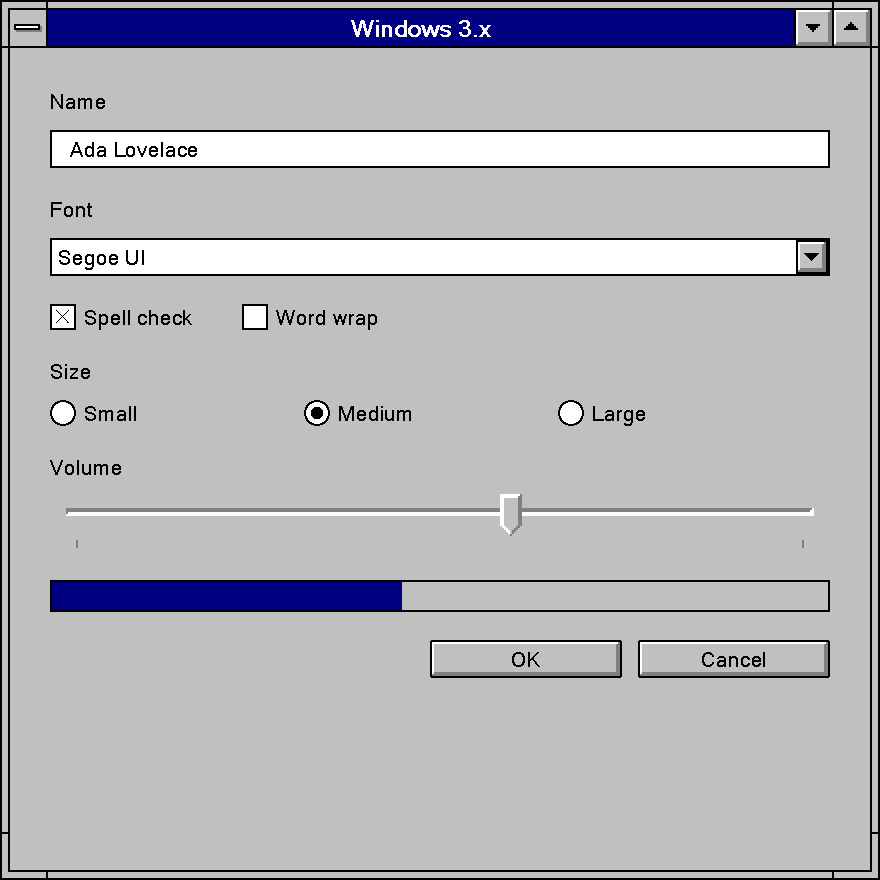
Windows3x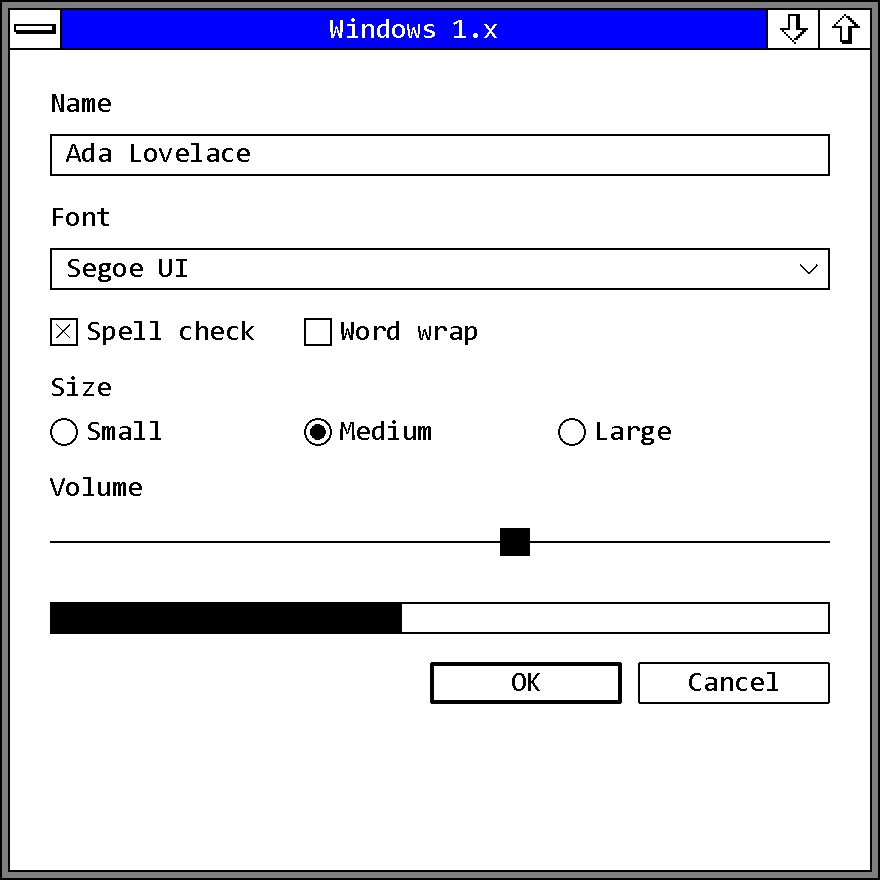
Windows1xThe light-only variants ignore Light, Dark and accent_override. ui::theme_variant_supports_dark_mode(variant) tells you which kind a variant is, for example to disable a dark mode switch. HighContrast works with every variant and gives that era's own contrast look.
System, Fluent2 and Fluent are always there. The older eras, from Mdl2 down, are only linked into the executable once the app calls ui::enable_era_themes(), which keeps an app that never shows them about 300 KB smaller. Call it once at the start of main(). Until then, a request for one of them draws System.
ui::enable_era_themes();
ui::Window window{{.title = "Retro", .theme = ui::ThemeRequest{.variant = ui::ThemeVariant::Luna}}};
Windows9x and Windows3x also take a color scheme in classic_scheme, such as ui::ClassicPalette::windows_standard_2000(), and Windows1x takes one in early_scheme, such as ui::EarlyPalette::windows_2x_color(). Theme Eras describes each era in detail.
Switching at Runtime
Window::set_theme() replaces the request while the window is open. The window keeps following the OS for every field the new request leaves at its default.
ui::ThemeRequest request = window.theme_request();
request.variant          = ui::ThemeVariant::Luna;
window.set_theme(request);
Bind .theme to a property and every window bound to it switches when the property changes:
ui::Property<ui::ThemeRequest> theme{};
ui::Window main_window{{.title = "My App", .theme = theme}};
ui::Window tools{{.title = "Tools", .theme = theme}};

theme = ui::ThemeRequest{.mode = ui::ThemeMode::Dark}; // both windows turn dark
Window::pin_theme() installs a hand-built ui::Theme instead. The window keeps it through OS theme changes until the next set_theme() or a change of the bound request.
ui::os_theme() returns the system's current state (dark, accent, high_contrast), which is useful to preset a dark mode switch in a settings page.
Animations
ThemeRequest::animations follows the OS "Animation effects" setting. ui::AnimationPreference::Off turns animations off for an app's own "Reduce motion" option. Transitions then jump to their end state.
Backdrop
WindowOptions::backdrop puts a system material behind the window: ui::Backdrop::Mica, MicaAlt or Acrylic.
A backdrop needs Windows 11 22H2 or later and the Fluent2 variant. Without them, or with transparency effects or high contrast on, the window keeps its opaque background. Window::set_backdrop() changes it while the window is open.
The Window Frame
The caption and border are the operating system's by default. With Frame::Themed the theme draws them in its era's style, so a Windows9x window gets a navy caption with beveled buttons. Variants without a frame of their own, such as Fluent2, keep the system frame.
ui::Window window{{
    .title    = "My App",
    .backdrop = ui::Backdrop::Mica,
    .style    = {.frame = ui::Frame::Themed},
}};
Snap, Win+arrow keys, the system menu and the window shadow keep working with a themed frame.
Colors in Your Own Drawing
A custom control or a ui::Border background reads the theme's colors by role from theme.colors(). Every variant fills every role, in light, dark and high contrast, so the same code looks right in each era.
The roles are text (text, text_secondary, text_disabled, text_on_accent, link), surfaces (background, card, overlay, field, field_text, scrim), the accent and control fills with their hover and pressed states, control_stroke, control_stroke_strong, divider, selection, focus and the four severities.
Type and Metrics in Your Own Drawing
Text drawn by a custom control takes its style from the type ramp, theme.type, with one TextStyle per role (header, subheader, title, subtitle, body, caption), or theme.type.for_role(role). theme.text_style is the era's control font, the one buttons and fields use.
Sizes come from the theme too: corner_radius for controls, overlay_corner_radius for popups and cards, border_width, padding for button content, and page.grid_unit and page.item_spacing for spacing. A control that reads these instead of fixed numbers fits every era, from the square corners of the classic themes to the rounded ones of Fluent.