Fluent 2
Windows 11, 2021 to present; WinUI 2.6 to 2.8 and WinUI 3. This is the current Windows design language, and the reference point the older eras on these pages are compared against.
There was never a separate "Windows 11 Fluent" and "Fluent 2". Windows 11's design language shipped in WinUI 2.6 (June 2021) and WinUI 3 1.0 under the plain name Fluent. Fluent 2 is the name Microsoft gave that same language, together with its web, iOS and Android siblings, in May 2023. It was a rebrand and a cross-platform unification. The shared color file carries 237 keys across that seam with zero value drift, and the corner radii, elevation ladder, button padding and motion tiers are identical. So this page treats 2021 to today as one era and calls out the few places where the launch build differs. The genuinely different predecessor is Windows 10's Fluent.
Evidence Tiers
Tier 1 is the shipped implementation in the
microsoft/microsoft-ui-xaml repository: the
*_themeresources.xaml dictionaries under controls/dev/ and the C++ runtime under
dxaml/xcp/ (shadow recipe, theme resolution, accent sourcing, focus drawing).1
Tier 2 is Microsoft's written guidance on Microsoft Learn, whose source is MicrosoftDocs/windows-dev-docs.
Tier 3 is the WinUI 3 Gallery, used only to confirm that a documented variant really ships.2
Tier 4 is Microsoft's Fluent 2 web design kit, which describes a different platform and never supplies a value here.
Where Tier 1 and Tier 2 disagree, the shipped XAML and C++ win, and the page says so.
Principles
The Five Windows Principles
Two principle sets exist. The four cross-platform Fluent 2 principles ("Natural on every platform", "Built for focus", "One for all, all for one", "Unmistakably Microsoft") were added above the Windows ones in 2023.3 The five Windows 11 principles from 2021 are the ones the shipped values actually implement, so they are the ones to design against.4
| Principle | Microsoft's wording | What it turned into |
|---|---|---|
| Effortless | "Faster and more intuitive" | Short, tiered motion: 83, 167 and 250 ms, and an entrance curve that covers most of its distance in the first third. |
| Calm | "Softer and decluttered; it fades into the background" | Rounded geometry (4 and 8 epx), translucent control fills, no shadow below Translation.Z 4, accent on one element per view. |
| Personal | "Adapts seamlessly to the way I use my device" | The accent is read live from the OS, light and dark are two full token sets, high contrast swaps in the user's own system colors. |
| Familiar | "Balances a new, refreshed look and feel with the familiarity of the Windows I already know" | Same control inventory and interaction model as before; only the surface treatment moved. |
| Complete + Coherent | "A visually seamless experience across platforms" | The same global ramps and two-light shadow model show up in the web implementation, with different plumbing. |
Calm is the one that matters most for a reimplementation. Most ways a copy of this look ends up subtly wrong are ways of being louder than Fluent 2 intends: a shadow under a resting button, an opaque fill where the system uses a 70 % alpha one, or accent color on more than one element.
Windows 11 also replaced Windows 10's pillars wholesale rather than relabeling them. The old "Light, Depth, Motion, Material, Scale" became seven signature experiences: color, elevation and layering, iconography, materials, shapes and geometry, typography, and motion. Color and iconography are promotions: neither was a pillar in Windows 10. Reveal, which was the whole "Light" pillar, is gone.
Two Layers
Windows 11 apps are built from exactly two layers.5 The base layer carries menus,
commands and navigation (NavigationView, CommandBar, MenuBar, TabView) and is what the
window's Mica shows through. The content layer holds the app's central experience, either as
one contiguous surface or as cards. Elevation values, which surfaces get acrylic and where a
shadow is allowed all follow from which layer a thing belongs to.
Rounding
Three levels of rounding, chosen by what is being rounded and what it touches:6
| Radius | Applies to |
|---|---|
| 8 epx | Top-level containers: windows, flyouts, dialogs |
| 4 epx | In-page elements: buttons, list backplates, text boxes, combo boxes |
| 4 epx | ToolTip, the documented exception to the overlay rule, because 8 would dominate it |
| 0 | Straight edges meeting other straight edges; window corners when snapped or maximized |
Where two elements touch, the touching edges are square: the two halves of a SplitButton, or the
side of a flyout attached to the control that opened it. WinUI does this with corner-radius
filter converters that zero one side of a single control radius, so an implementation needs "one
radius, per-corner derived", not four independent radius properties. The entire app-overridable
vocabulary is two resources, ControlCornerRadius (4) and OverlayCornerRadius (8).
The written "bars get 4 epx" rule is not what ships: ProgressBarCornerRadius is 1.5 and
ProgressBarTrackCornerRadius 0.5 in the Tier 1 dictionary.
Spacing Between Things
Published composition gaps, for app authors rather than controls:7
| Between | Gap |
|---|---|
| Two buttons; a button and its flyout; a control and its header | 8 epx |
| A control and its label; two content areas | 12 epx |
| A surface edge and the text inside it | 16 epx |
Page margins split into 56 epx for cohesive, media-rich layouts (Photos, Settings) and 12 epx for utility and editing surfaces (Notepad, Terminal).
Foundations
Color
Every token follows <Family><Purpose>Color<Variant>. The family says the role, independent of
theme; the suffix (Secondary, Tertiary, Quarternary with WinUI's own spelling, Quinary,
Senary) is a fixed emphasis or state step inside that family. All values live in
Common_themeresources_any.xaml, whose three theme dictionaries are Default, Light and
HighContrast. Default is the dark one. That conflation is the single most common misreading
of these files.
| Family | Role |
|---|---|
TextFillColor* |
Text and icons on a neutral surface |
AccentTextFillColor*, TextOnAccentFillColor* |
Accent-colored text, and text drawn on an accent fill |
ControlFillColor* |
Standard control background, rest to disabled |
ControlStrongFillColor*, ControlSolidFillColor* |
High-emphasis chrome (slider track), fully opaque control fill (slider thumb, switch knob) |
SubtleFillColor* |
Transparent at rest, a faint wash on hover and press: list rows, nav items, command-bar buttons |
ControlAltFillColor* |
The unchecked CheckBox, RadioButton and ToggleSwitch indicator, despite the name |
AccentFillColor* |
Accent buttons, checked toggles, selection indicators |
ControlStrokeColor*, ControlStrongStrokeColor* |
Control borders, normal and high-emphasis |
CardStrokeColor*, CardBackgroundFillColor* |
Cards, Expander, InfoBar |
SurfaceStrokeColor*, DividerStrokeColor*, FocusStrokeColor* |
Popup borders, separators, the two focus rings |
SmokeFillColor*, LayerFillColor*, SolidBackgroundFillColor* |
Modal scrim, tints over Mica, the opaque page ramp |
SystemFillColor* |
Success, caution, critical, neutral and attention status colors |
The values that decide how a control looks, Light and Dark (alpha shown as a percentage):
| Token | Light | Dark |
|---|---|---|
TextFillColorPrimary |
#E4000000 (89 %) |
#FFFFFF |
TextFillColorSecondary |
#9E000000 (62 %) |
#C5FFFFFF (77 %) |
TextFillColorTertiary |
#72000000 (45 %) |
#87FFFFFF (53 %) |
TextFillColorDisabled |
#5C000000 (36 %) |
#5DFFFFFF (36 %) |
TextOnAccentFillColorPrimary |
#FFFFFF |
#000000 |
TextOnAccentFillColorSecondary |
#B3FFFFFF (70 %) |
#80000000 (50 %) |
ControlFillColorDefault |
#B3FFFFFF (70 %) |
#0FFFFFFF (6 %) |
ControlFillColorSecondary (hover) |
#80F9F9F9 (50 %) |
#15FFFFFF (8 %) |
ControlFillColorTertiary (pressed) |
#4DF9F9F9 (30 %) |
#08FFFFFF (3 %) |
ControlFillColorDisabled |
#4DF9F9F9 (30 %) |
#0BFFFFFF (4 %) |
ControlFillColorInputActive (focused text field) |
#FFFFFF |
#B31E1E1E (70 %) |
ControlStrongFillColorDefault |
#72000000 (45 %) |
#8BFFFFFF (55 %) |
ControlSolidFillColorDefault |
#FFFFFF |
#454545 |
SubtleFillColorSecondary (hover) |
#09000000 (4 %) |
#0FFFFFFF (6 %) |
SubtleFillColorTertiary (pressed) |
#06000000 (2 %) |
#0AFFFFFF (4 %) |
ControlAltFillColorSecondary (unchecked, rest) |
#06000000 (2 %) |
#19000000 (10 %) |
ControlAltFillColorTertiary (unchecked, hover) |
#0F000000 (6 %) |
#0BFFFFFF (4 %) |
ControlAltFillColorQuarternary (unchecked, pressed) |
#18000000 (9 %) |
#12FFFFFF (7 %) |
AccentFillColorDisabled |
#37000000 (22 %) |
#28FFFFFF (16 %) |
ControlStrokeColorDefault |
#0F000000 (6 %) |
#12FFFFFF (7 %) |
ControlStrokeColorSecondary |
#29000000 (16 %) |
#18FFFFFF (9 %) |
ControlStrokeColorOnAccentDefault |
#14FFFFFF (8 %) |
#14FFFFFF (8 %) |
ControlStrokeColorOnAccentSecondary |
#66000000 (40 %) |
#23000000 (14 %) |
ControlStrongStrokeColorDefault |
#72000000 (45 %) |
#8BFFFFFF (55 %) |
ControlStrongStrokeColorDisabled |
#37000000 (22 %) |
#28FFFFFF (16 %) |
CardStrokeColorDefault |
#0F000000 (6 %) |
#19000000 (10 %) |
CardBackgroundFillColorDefault |
#B3FFFFFF (70 %) |
#0DFFFFFF (5 %) |
SurfaceStrokeColorDefault |
#66757575 |
#66757575 |
DividerStrokeColorDefault |
#0F000000 (6 %) |
#15FFFFFF (8 %) |
FocusStrokeColorOuter |
#E4000000 (89 %) |
#FFFFFF |
FocusStrokeColorInner |
#B3FFFFFF (70 %) |
#B3000000 (70 %) |
SmokeFillColorDefault |
#4D000000 (30 %) |
#4D000000 (30 %) |
LayerFillColorDefault |
#80FFFFFF (50 %) |
#4C3A3A3A (30 %) |
SolidBackgroundFillColorBase (page) |
#F3F3F3 |
#202020 |
SolidBackgroundFillColorSecondary |
#EEEEEE |
#1C1C1C |
SolidBackgroundFillColorTertiary |
#F9F9F9 |
#282828 |
SystemFillColorSuccess / ...Background |
#0F7B0F / #DFF6DD |
#6CCB5F / #393D1B |
SystemFillColorCaution / ...Background |
#9D5D00 / #FFF4CE |
#FCE100 / #433519 |
SystemFillColorCritical / ...Background |
#C42B1C / #FDE7E9 |
#FF99A4 / #442726 |
Five traps hide in these numbers:
- Fills are translucent. A Light button at rest is 70 % white over whatever is behind it, which
is what lets Mica tint it. Only
ControlFillColorInputActiveis opaque, which is why a focused text box visibly lifts off the page. - Dark's unchecked indicator is a recess. Its rest rung is black-alpha and its hover and press rungs are white-alpha, so the box starts darker than the page and lifts out of it. Light is black-alpha throughout. Disabled is fully transparent in both.
SurfaceStrokeColorDefaultandSmokeFillColorDefaultare the same in both themes. Almost nothing else is.CardStrokeColorDefaultis black-alpha in Dark where the control stroke is white-alpha, so a card edge stays a dark line on a dark page.LayerOnMicaBaseAltFillColor*is not the subtle ramp.TabViewuses it for its tab hover and press, and its pressed rung (...Default) is a lighter, mostly opaque layer:#B3FFFFFFin Light,#733A3A3Ain Dark. So a tab brightens on press where a subtle-fill control darkens.
Four tokens (CardBackgroundFillColorTertiary, ControlFillColorQuarternary,
SolidBackgroundFillColorQuinary, SolidBackgroundFillColorSenary) arrived after 2021. Everything
else, including the whole SystemFillColor* family, is present in the launch build.
Measured over the base page, the text ramp encodes a rule: Primary and Secondary pass 4.5:1 in both themes, Tertiary passes only in Dark (3.3:1 in Light), and Disabled fails by design in both (2.5:1 Light, 3.3:1 Dark).8 So Tertiary is a placeholder token, never a body-text token, and disabled state must never be the only signal that a control is unavailable.
Accent
The accent is seven OS-supplied colors, never computed. WinUI asks
UISettings::GetColorValue for Accent and the six variants AccentLight1..3 and
AccentDark1..3, and uses what comes back verbatim.9 The tint and shade algorithm lives
in closed shell code and has no published formula. When it cannot ask the OS, WinUI falls back to
seven constants, the Windows default blue:
| Rung | Color |
|---|---|
| Dark3 | #002642 |
| Dark2 | #004275 |
| Dark1 | #005A9E |
Base (SystemAccentColor) |
#0078D4 |
| Light1 | #429CE3 |
| Light2 | #76B9ED |
| Light3 | #A6D8FF |
The polarity flips per theme. Dark fills with the Light rungs, Light fills with the Dark ones, so an accent surface always stands out from its page:
| Brush | Light | Dark |
|---|---|---|
AccentFillColorDefault |
Dark1 | Light2 |
AccentFillColorSecondary (hover) |
Dark1 at 90 % | Light2 at 90 % |
AccentFillColorTertiary (pressed) |
Dark1 at 80 % | Light2 at 80 % |
AccentTextFillColorPrimary / Secondary / Tertiary |
Dark2 / Dark3 / Dark1 | Light3 / Light3 / Light2 |
SystemFillColorAttention |
base | Light2 |
| Selected-text background | base | base |
GetSysColor(COLOR_HIGHLIGHT) is not the accent: it returns a frozen Windows 10 #0078D7,
one digit away from the real default #0078D4, and it returns light values on a dark-mode machine.
An app that overrides SystemAccentColor in its resources shadows exactly that one key. The six
variants are fetched separately, so they keep the user's real OS ramp and the accent button stops
matching the overridden base. WinUI's own test hook says what its authors would reach for if they
wanted a derivation: alpha-blending the accent over white and black.
High Contrast
Under a contrast theme every semantic brush is rebound to one of the Win32 system colors, driven by the user's own scheme. Fluent authors no colors for it at all.
| Token family | Resolves to |
|---|---|
Text (TextFillColor*, AccentTextFillColor*, TextOnAccentFillColor*) |
WindowText; disabled rungs GrayText |
Fills (ControlFillColor*, SubtleFillColor*, ControlAltFillColor*, ...) |
ButtonFace |
| Control strokes | ButtonText; disabled GrayText |
| Surface, card, divider strokes, outer focus ring | WindowText |
| Accent fills, card and layer fills, page ramp, inner focus ring | Window |
The elevation gradients collapse to a flat WindowText stroke, acrylic and Mica become solid
Window, and there are no shadows. In the Default and Light dictionaries the system-color
brushes are poisoned with magenta #FF00FF, and the HighContrast dictionary's raw Color
resources are pure red, so a style bound to the wrong layer shows up at once. Corner radii live
outside the theme dictionaries and stay 4 and 8. The OS calls these contrast themes (Aquatic,
Desert, Dusk, Night sky, and custom); WinUI branches only on "is one active".10
Typography
One variable font, Segoe UI Variable, with a weight axis (100 to 700) and an automatic optical-size axis whose Small, Text and Display cuts reshape the glyphs per size. Before Windows 11 the resolved family was static Segoe UI, and that font swap is the real type change at the Windows 10 seam. The sizes moved far less.11
| Style | Size (epx) | Weight | Line height (epx) |
|---|---|---|---|
| Caption | 12 | Regular | 16 |
| Body | 14 | Regular | 20 |
| BodyStrong | 14 | SemiBold | 20 |
| BodyLarge (after 2021) | 18 | Regular | 24 |
| BodyLargeStrong (after 2021) | 18 | SemiBold | 24 |
| Subtitle | 20 | SemiBold | 28 |
| Title | 28 | SemiBold | 36 |
| TitleLarge | 40 | SemiBold | 52 |
| Display | 68 | SemiBold | 92 |
BaseTextBlockStyleis SemiBold, and only Caption, Body and BodyLarge override it back, so every style from Subtitle up is SemiBold by default.- The line heights are Tier 2. The XAML sets no
LineHeightat all and leaves it to the font's metrics withLineStackingStrategy="MaxHeight". - Bold and italic are not part of the ramp. Emphasis is SemiBold.
- The launch ramp is the other seven rows.
BodyLargewas documented from day one and not implemented in WinUI 2.6 to 2.8 XAML, the era's clearest case of guidance and code disagreeing. - Control text is
ControlContentThemeFontSize, 14 epx. - Icons come from Segoe Fluent Icons, which replaced Segoe MDL2 Assets. Every glyph is drawn as a 1 epx monoline, the codepoints mostly carry over, and the glyph sizes did not change across the seam.12
Metrics
Everything is in effective pixels (epx). Element sizes, margins and positions sit on a 4 epx grid, because 4 is the smallest unit that stays a whole number of physical pixels at every scale plateau (100, 125, 150, 175, 200, 225, 250, 300, 350 and 400 %).13 Control padding deliberately does not: vertical padding is often one pixel off the grid, tuned against the font's baseline.
| Token | Value |
|---|---|
ControlCornerRadius |
4 |
OverlayCornerRadius |
8 |
ButtonPadding |
11,5,11,6 |
ButtonBorderThemeThickness |
1 |
TextControlThemePadding |
10,5,6,6 |
TextControlThemeMinHeight / MinWidth |
32 / 64 |
TextControlBorderThemeThicknessFocused |
1,1,1,2 (HC: 2 uniform) |
CheckBoxSize, CheckBoxPadding |
20, 8,5,0,0 |
ComboBoxPadding, ComboBoxMinHeight |
12,5,0,7, 32 |
FlyoutContentPadding |
16,15,16,17 |
ToolTipBorderPadding |
9,6,9,8 |
ContentDialogPadding |
24 |
Note the bottom-heavy padding: ButtonPadding went from 8,5,8,6 and TextControlThemePadding
from 10,6,6,5 in Windows 10 to the values above. Two controls flipping the same way in the same
release reads as a deliberate "weight sits slightly low" rule.
Elevation and Shadow
Each surface class has an elevation value (UIElement.Translation.Z) and a 1 epx contour
stroke.5 The stroke is the primary depth cue. Shadow is secondary and only switches on
higher up the ladder:
| Surface | Z | Shadow |
|---|---|---|
| Window, Dialog | 128 | yes, the strongest |
| Flyout | 32 | yes |
| ToolTip | 16 | yes |
| Card | 8 | yes, subtle |
| Control (rest, hover) | 2 | none |
| Control (pressed) | 1 | none |
| Layer | 1 | none |
Pressing does not lift a control. It presses it in, and elevation drops from 2 to 1. Both are below the shadow threshold, so the only visible change is the contour flattening.
The shadow is two superimposed pure-black drop shadows, an ambient (omnidirectional) and a
directional (offset down), from DropShadowRecipe.h, which states it was taken from the shell's
own implementation:14
Elevation = min(64, Translation.Z / 2)

Elevation < 2        no shadow
2 <= E <= 16         ambient alpha 0
                     directional alpha  Light min(E/100 + 0.06, 0.14)   Dark 0.26
E > 16               ambient blur E/3, y-offset 2, alpha  Light 0.15   Dark 0.37
                     directional alpha                    Light 0.19   Dark 0.37

directional blur = E, directional y-offset = E / 2
| Surface | Directional blur / offset | Directional alpha (Light, Dark) | Ambient |
|---|---|---|---|
| Window, Dialog (128) | 64 / 32 | 0.19, 0.37 | blur 21.3, offset 2, alpha 0.15, 0.37 |
| Flyout (32) | 16 / 8 | 0.14, 0.26 | none |
| ToolTip (16) | 8 / 4 | 0.14, 0.26 | none |
| Card (8) | 4 / 2 | 0.10, 0.26 | none |
Light-theme alpha saturates at elevation 8, so a tooltip and a flyout differ only in blur and offset. Dark shadows are much stronger at every elevation, so one theme's values ported to the other look wrong. For windowed popups WinUI replaces the computed insets with hand-tuned ones that bound the visible shadow: 4/1/4/8 for a tooltip, 10/2/10/18 for everything else. WinUI renders the shadow into a nine-grid surface only to work around compositor clipping; a renderer drawing its own shadows can apply the recipe directly.
The Contour Gradient
Below the shadow threshold, a control reads as raised through a gradient border:
| Brush | Mapping | Stops |
|---|---|---|
ControlElevationBorderBrush |
Absolute, (0,0) to (0,3) |
0.33 ControlStrokeColorSecondary, 1.0 ControlStrokeColorDefault |
AccentControlElevationBorderBrush |
Absolute, (0,0) to (0,3) |
0.33 ControlStrokeColorOnAccentSecondary, 1.0 ControlStrokeColorOnAccentDefault |
CircleElevationBorderBrush |
Relative to bounding box | 0.50 ControlStrokeColorDefault, 0.70 ControlStrokeColorSecondary |
TextControlElevationBorderBrush |
Absolute, 2 epx, flipped | 0.5 ControlStrongStrokeColorDefault, 1.0 ControlStrokeColorDefault |
Three details decide whether a copy looks right:
- The transition happens inside 3 epx, in absolute units, so the stronger stop reads as a hairline along one horizontal edge at any control height. A bounding-box gradient gives a softer, visibly different control.
- The direction flips per theme. A
ScaleTransform ScaleY="-1"sits on the neutral brush in the Light dictionary only, and on the accent brush in both. So a plain control's strong edge is its bottom in Dark and its top in Light, while an accent control's is always the bottom. - Pressed and disabled drop the gradient for a flat
ControlStrokeColorDefault(neutral) or a transparent border (accent).
This lift border is a Windows 11 launch signature. The brushes sit in a file both eras merge, but no Windows 10 template ever binds them.
Focus
The focus visual is two nested strokes, drawn outside the control:15
| Ring | Width | Brush |
|---|---|---|
| Outer | 2 epx | FocusStrokeColorOuter |
| Inner | 1 epx, inside the outer | FocusStrokeColorInner |
The default FocusVisualMargin is -3, so the pair floats 3 epx outside the bounds. The colors
invert between themes, and the contrast between the rings is what keeps focus visible on any
background; a single thick ring vanishes on a surface of similar luminance. The ring has no radius
of its own: each corner takes the target's CornerRadius adjusted by the average of the two edge
margins meeting there, which keeps it concentric. It is drawn only for keyboard or gamepad focus,
and only while the window is active. Focus is not a visual state: it composes on top of whatever
state the control is in.
Per-control margins deviate for geometry: CheckBox, RadioButton and ToggleSwitch use
-7,-3,-7,-3 so the ring wraps glyph and label together, Slider uses -7,0,-7,0, list items
0 or 1, and BreadcrumbBar a positive 1 so neighboring crumbs' rings don't collide.
Interaction States
Normal, PointerOver, Pressed and Disabled, with Selected or Checked in a separate
group. Three token families supply the fills, and which one a control uses is the whole difference
between a standard, an accent and a subtle control:
| State | Standard | Accent | Subtle |
|---|---|---|---|
| Normal | ControlFillColorDefault |
AccentFillColorDefault |
transparent |
| PointerOver | ControlFillColorSecondary |
AccentFillColorSecondary |
SubtleFillColorSecondary |
| Pressed | ControlFillColorTertiary |
AccentFillColorTertiary |
SubtleFillColorTertiary |
| Disabled | ControlFillColorDisabled |
AccentFillColorDisabled |
transparent |
The foreground follows one step behind: primary text through hover, secondary text when pressed, disabled text when disabled. Nothing moves, offsets or scales on press.
Materials
Mica is an opaque material for the base layer of long-lived windows. It samples the desktop wallpaper once and tints it with the theme, and it has a built-in inactive state. Mica Alt is a stronger tint for tabbed title bars. Mica arrived in WinUI 2.7 (2021-09-14), three months after the Windows 11 refresh itself, so a Mica claim dated to the launch build is wrong by a quarter.16
The internal Mica controller behind WinUI 2's BackdropMaterial is open source and gives the
recipe: tint #202020 at 0.8 in Dark and #F3F3F3 at 0.5 in Light, luminosity opacity 1.0, over
the blurred wallpaper sample. Its fallback is the tint color itself, i.e. exactly
SolidBackgroundFillColorBase. Mica Alt falls back to SolidBackgroundFillColorBaseAlt
(#DADADA Light, #0A0A0A Dark). Everything above the material must be transparent for Mica to
show, and content layers tint it with LayerFillColorDefault.
Acrylic is a translucent brush: background sample, Gaussian blur, a luminosity blend, a color tint, noise. Background acrylic samples the desktop behind the window (flyouts, context menus); in-app acrylic samples only the app's own content (panes). Both share the same numbers:
| Brush | Theme | Tint | Tint opacity | Luminosity opacity | Fallback |
|---|---|---|---|---|---|
Acrylic...FillColorDefault |
Light | #FCFCFC |
0.0 | 0.85 | #F9F9F9 |
| Dark | #2C2C2C |
0.15 | 0.96 | #2C2C2C |
|
Acrylic...FillColorBase |
Light | #F3F3F3 |
0.0 | 0.9 | #EEEEEE |
| Dark | #202020 |
0.5 | 0.96 | #1C1C1C |
Both materials fall back to their solid color under a contrast theme, with transparency effects off, in battery saver, and on low-end hardware. Mica and background acrylic also fall back when the window deactivates. For in-app acrylic the policy is open code: exactly energy saver, "effects not fast" and transparency off, cross-faded over 167 ms. For Mica and background acrylic the policy lives in the closed compositor.
FlyoutPresenter, ToolTip, MenuFlyout and the ComboBox popup all use in-app acrylic in
Windows 11 (Windows 10 used background acrylic for flyouts). ContentDialog and a pinned
TeachingTip are opaque. Smoke, the modal scrim, is #4D000000 in both themes and needs no
material support. Reveal is not part of Fluent 2. Its retreat was gradual: it still ships in
WinUI 2.6 to 2.8 behind a type-presence guard, so a re-creation of the 2021 launch may include it
and one of today's system should not.
Motion
Four principles govern motion: connected, consistent, responsive and resourceful. The shipped dictionaries name exactly four durations and one curve:17
| Resource | Duration | Typical use |
|---|---|---|
ControlFasterAnimationDuration |
83 ms | Opacity-only fades, the switch knob's grow |
ControlFastAnimationDuration |
167 ms | Most position and scale moves |
ControlFastAnimationAfterDuration |
168 ms | A companion that sequences a keyframe right after the 167 ms one |
ControlNormalAnimationDuration |
250 ms | Normal-weight state transitions |
Other durations are real but unnamed, each pinned by a shipped template or runtime constant:
| Duration | Where |
|---|---|
| 333 ms | Expander expand, ListViewItem entering multi-select, indeterminate ProgressBar resume |
| 200 ms | Direct connected animation, Expander's collapse visibility flip |
| 300 ms / 150 ms | Implicit ScalarTransition/Vector3Transition / BrushTransition defaults |
| 500 ms | Indeterminate ProgressBar track sweep |
| Curve | Control points | Use |
|---|---|---|
Fast out, slow in (ControlFastOutSlowInKeySpline) |
0, 0, 0, 1 |
Entrances; nearly every themed state move |
| Slow out, fast in | 1, 0, 1, 1 |
Exits, always paired with a fade |
| Point to point | 0.55, 0.55, 0, 1 |
Existing elements moving between positions |
| Implicit / connected default | 0.8, 0, 0.2, 1 |
Implicit transitions and ConnectedAnimationService |
| Decelerate | 0.1, 0.9, 0.2, 1 |
Direct connected animation, multi-select slide |
| Linear | Color transitions (BrushTransition), bare-minimum fades |
Entrances run about twice as long as the matching exit. Expander opens in 333 ms on
0,0,0,1 and closes in 167 ms on 1,1,0,1; page transitions are 300 ms in, 150 ms out; implicit
geometry is 300 ms and color 150 ms. The "Standard" easing named in the guidance has no published
control points; 0.8, 0, 0.2, 1 is the only symmetric curve the runtime ships, so treating it as
Standard is an inference.
Page navigation uses four transitions. Page refresh (the Frame default) fades out in 150 ms, then
slides new content up about 150 px while fading in over 300 ms; drill scales in from the invoked
item; slide moves sibling pages sideways; suppress does nothing. Their storyboards are OS-side, so
these numbers are Tier 2. Connected animation is fully Tier 1: the gravity configuration dips the
element 80 epx down and 32 epx forward and scales it to 1.1 at 66 % of the move. The shipped code
contradicts the docs twice here, and the code wins: the direct configuration runs 200 ms (docs:
150), and an unstarted animation is dropped after 2 s (docs: 3).
Controls
Values are epx at 100 % scale. Colors are token names; resolve them with the tables above.
Button
| Property | Value |
|---|---|
| Padding | 11,5,11,6; no min width or height, sizes from padding and content |
| Border | 1 epx; corner radius ControlCornerRadius (4) |
BackgroundSizing |
InnerBorderEdge (default style); OuterBorderEdge (accent) |
| Font | 14, Regular |
| Focus margin | -3 |
| State | Background | Foreground | Border |
|---|---|---|---|
| Normal | ControlFillColorDefault |
TextFillColorPrimary |
ControlElevationBorderBrush |
| PointerOver | ControlFillColorSecondary |
TextFillColorPrimary |
ControlElevationBorderBrush |
| Pressed | ControlFillColorTertiary |
TextFillColorSecondary |
ControlStrokeColorDefault |
| Disabled | ControlFillColorDisabled |
TextFillColorDisabled |
ControlStrokeColorDefault |
Accent button (AccentButtonStyle): AccentFillColor* backgrounds, TextOnAccentFillColor*
labels, AccentControlElevationBorderBrush at rest and hover, a transparent border when pressed or
disabled. Reserve it for the single primary action in a view.
Subtle button (SubtleButtonStyle): transparent at rest, SubtleFillColorSecondary on hover,
...Tertiary on press, border always the same color as the fill. The style name is post-2021,
but the look is not: command-bar buttons bound the same SubtleFillColor* ramp in 2021.
HyperlinkButton: subtle backgrounds with accent text (AccentTextFillColorPrimary,
Secondary, Tertiary, Disabled per state), a border that stays transparent, and no
underline: HyperlinkUnderlineVisible is False in the shipped dictionary, whatever the
guidance says, except under a contrast theme.
CheckBox, RadioButton, ToggleButton
| Property | CheckBox | RadioButton |
|---|---|---|
| Indicator | 20 x 20, radius 4 | 20 x 20 ring |
| Border | 1 | 1 |
| Glyph / dot | Segoe Fluent Icons U+E73E (check), U+E9AE (indeterminate), 12 |
dot 12, 14 on hover, 10 pressed |
| Content padding | 8,5,0,0 |
8,6,0,0 |
| Row height / min width | 32 / 120 | 32 / 120 |
| Check state | Interaction | Stroke | Fill | Glyph |
|---|---|---|---|---|
| Unchecked | Normal | ControlStrongStrokeColorDefault |
ControlAltFillColorSecondary |
hidden |
| Unchecked | PointerOver | ControlStrongStrokeColorDefault |
ControlAltFillColorTertiary |
hidden |
| Unchecked | Pressed | ControlStrongStrokeColorDisabled |
ControlAltFillColorQuarternary |
hidden |
| Unchecked | Disabled | ControlStrongStrokeColorDisabled |
transparent | hidden |
| Checked | Normal / Hover / Pressed | AccentFillColor Default / Secondary / Tertiary |
same as stroke | TextOnAccentFillColorPrimary |
| Checked | Disabled | ControlStrongStrokeColorDisabled |
AccentFillColorDisabled |
TextOnAccentFillColorDisabled |
Indeterminate mirrors Checked row for row with the dash glyph. The whole box becomes an accent
square once checked. The radio dot stays TextOnAccentFillColorPrimary in every state, carries the
CircleElevationBorderBrush rim, and its grow and shrink animate on 0,0,0,1 over 250 ms (hover)
and 167 ms (press). A checked ToggleButton looks exactly like the accent button; an indeterminate
one looks unchecked.
The dot's rim is CircleElevationBorderBrush in all four common states (stops at 0.5
ControlStrokeColorDefault and 0.7 ControlStrokeColorSecondary, never flipped), so the white dot
has a faint rim that is stronger at the bottom. The Checked storyboard sets the accent elevation
brush instead, but every CommonStates storyboard sets the neutral one back and the last group to
start wins. So a checked dot the pointer has touched carries the neutral rim, which makes it the
rim a checked radio shows in practice. ToggleSwitchKnobStrokeOn names the same brush, but on a Border without a
BorderThickness, so it draws nothing.
The ring is a filled disc under its stroke in both check states (RadioButtonOuterEllipseFill* and
...CheckedFill*): the unchecked ring has the faint ControlAltFill wash from the table above, and
a checked radio is an accent disc with a white dot, not an accent dot inside an outline.
ToggleSwitch
| Property | Value |
|---|---|
| Track | 40 x 20, full pill; stroke 1 off, 0 on |
| Knob | 12 rest, 14 hover, 17 x 14 pressed; travels 20 |
| Track to label | 10 each side |
| Min width | 154 |
| State | Track fill | Track stroke | Knob |
|---|---|---|---|
| Off | ControlAltFillColor* ladder |
ControlStrongStrokeColorDefault (disabled: ...Disabled) |
TextFillColorSecondary |
| On | AccentFillColor* ladder |
same as fill | TextOnAccentFillColorPrimary |
The knob's horizontal squish on press is a Windows 11 invention; the Windows 10 switch only changed color. Unlike CheckBox, the off track's pressed stroke stays at the default strong stroke.
Slider
| Property | Value |
|---|---|
| Control height | 32 |
| Track | 4 thick, radius 2; ControlStrongFillColorDefault, value part in AccentFillColor* |
| Thumb | 18 x 18 layout box, drawn as a 22 epx outer disc (its border has Margin="-2") |
| Outer disc | ControlSolidFillColorDefault with ControlElevationBorderBrush, fixed |
| Inner disc | accent, 12 rest, 14 hover, 10 pressed, animated on 0,0,0,1 |
| Track inset | 14 each end |
Text Input
TextBox, PasswordBox, RichEditBox, AutoSuggestBox and NumberBox share one vocabulary.
| State | Background | Border |
|---|---|---|
| Rest | ControlFillColorDefault |
TextControlElevationBorderBrush |
| PointerOver | ControlFillColorSecondary |
unchanged |
| Focused | ControlFillColorInputActive (opaque) |
1 epx sides and top, 2 epx bottom in the accent (Dark1 Light, Light2 Dark) |
| Disabled | ControlFillColorDisabled |
flat ControlStrokeColorDefault |
The bottom-only accent underline is the most recognizable Windows 11 text-input signature.
Windows 10 thickened the whole border uniformly. State changes here are instant swaps, not fades.
Placeholder text is TextFillColorSecondary, selection AccentFillColorSelectedTextBackground.
ComboBox
Closed, it is a button: the same fills and elevation border, min height 32, padding 12,5,0,7,
and a 12 epx animated chevron with a 0,0,14,0 margin. Its focus visual is its own: a 2 epx flat
FocusStrokeColorOuter ring at radius 7, offset 4 outside, not the two-ring visual. An editable
ComboBox uses the text box's underline instead. The popup is in-app acrylic, radius 8, up to 15
items. Items are subtle (radius 3, padding 11,5,11,7); the selected one keeps a neutral fill and
shows a 3 x 16 accent pill at radius 1.5, the only accent pixel in the row.
Lists and Navigation
ListViewItem (min height 40, radius 4) and NavigationViewItem (min height 36) keep their
backgrounds in the subtle family: selected rows are SubtleFillColorSecondary, and selection is
shown by a separate 3 x 16 accent pill, radius 1.5, at the leading edge. For list rows the
pill's geometry is C++ constants, not theme resources: 3 wide, 4 inset, height
max(16, row height - 40). ListViewItemSelectedBorderThemeThickness (4) is declared and never
consumed, a leftover of the Windows 10 template. GridViewItem shows selection as a 2 epx border
instead. NavigationView's pane is 48 compact, its content grid is LayerFillColorDefault with an
8 epx top-left corner facing the pane. TreeViewItem is 28 high. SelectorBar marks selection
with a 4 x 3 pill.
A ListViewItem follows ListViewBaseItemChrome's rounded mode:
| Property | Value |
|---|---|
| Size | min 40 high, 88 wide |
| Content padding | 16,0,12,0, centered vertically, stretched across |
| Backplate | inset 4,2 at ControlCornerRadius; SubtleFillColorSecondary on hover and while selected, ...Tertiary pressed, ...Secondary again pressed while selected |
| Selection pill | Single and Extended mode only; 6 epx shorter while pressed |
| Multiple mode | a 20 x 20 check box 14 in from the left, content pushed 28 to the right, accent-filled and ticked while selected |
The SelectorBar pill is a 4 x 3 rectangle that the Selected states scale to 4 times its width
(16 epx settled) and fade in, about its center, over 167 ms on 0,0,0,1. Its items never fill: every
SelectorBarItemBackground* token is transparent, even selected, and the label walks
TextFillColorPrimary, Secondary, Tertiary and Disabled for rest, hover, pressed and
disabled.
DataGrid has no WinUI Gallery counterpart. Its values come from
TabularSurfaces_themeresources.xaml, the shared source for grid-style rows, headers and
gridlines: rows at least 28 high, the header 40, cell padding 12,4,12,4, header cell padding
8,4,8,4, a bottom gridline on every row, and the selected row marked with a subtle background plus
a 2 epx accent border instead of the list's leading pill. The header background (#26000000 Light,
#26FFFFFF Dark) is bumped from ControlStrokeColorDefault's alpha for contrast over row banding,
and the gridline (#29000000, #29FFFFFF) past DividerStrokeColorDefault, which that file calls
"too faint at 1px width on alternating rows". So both are tokens of their own, even though the
file's comments name the resources they started from.
SplitButton, TabView, SplitView, SwipeControl
SplitButton is three columns: the primary part (at least 35 wide), a 1 epx divider in
ControlStrokeColorDefault, and the 35 wide secondary part. The primary part is rounded on the left
only and the secondary on the right only, each with a border on its three outer sides; this is the
square touching edge from Rounding. The chevron is 12 x 12, 12 in from the right edge,
in TextFillColorSecondary. SplitButtonPadding (11,6,11,7) is ButtonPadding plus the 1 epx
border the inner buttons lack. A checked ToggleSplitButton fills in AccentFillColorDefault with
a ControlStrokeColorOnAccentTertiary divider.
TabView property |
Value |
|---|---|
| Tab header padding | 8,3,4,3 with a close button, 8,3,8,3 without; 1 epx border |
| Icon | 16 epx, 10 epx gap to the header |
| Header text | 12, SemiBold when selected |
| Close button | 32 x 24 |
Width (Equal, the default) |
the strip divided evenly, clamped to 100..240 |
| Scroll buttons | 50 epx per click, repeat delay 50 ms, interval 100 ms |
The strip is chrome: a hairline rule (TabViewBorderBrush) runs under every tab and the selected
tab breaks through it with top corners at OverlayCornerRadius and a bottom that flares 4 epx
outward, filled SolidBackgroundFillColorTertiary and stroked CardStrokeColorDefault. Unselected
tabs use the LayerOnMicaBaseAlt ramp (see the trap above) and are divided by inset hairlines
(margin 0,8,0,8), hidden next to the selected and the hovered tab.
SplitView's pane defaults to SystemControlPageBackgroundChromeLowBrush, and a light-dismiss
overlay dims the content with SplitViewLightDismissOverlayBackground (AltMedium, alpha 0x99). The
pane slides open over 350 ms and closed over 120 ms on 0.1,0.9,0.2,1 in the overlay modes, and
over 200/100 ms on 0,0.35,0.15,1 inline.
SwipeControl items are at least 68 wide and 40 high, a 16 epx icon over a 12 epx label in a
4,4,4,2 margin, on ControlFillColorTertiary with TextFillColorPrimary when unset. An execute
item draws in the SwipeItemPreThresholdExecute* brushes until the drag passes 100 epx (or the
control's width, if that is less), then in the accent.
Overlays
| Surface | Radius | Background | Border | Notes |
|---|---|---|---|---|
ContentDialog |
8 | SolidBackgroundFillColorBase, content band LayerFillColorAlt |
SurfaceStrokeColorDefault |
320 to 548 wide, padding 24, button gap 8, 1 epx divider above the buttons, smoke scrim behind |
| Flyout | 8 | in-app acrylic | SurfaceStrokeColorFlyout |
padding 16,15,16,17, 96 to 456 wide |
MenuFlyout |
8 | acrylic | SurfaceStrokeColorFlyout |
items padding 11,8,11,9, margin 4,2,4,2, radius 4, subtle ladder; separator 1 epx |
ToolTip |
4 | in-app acrylic | SurfaceStrokeColorFlyout |
12 epx text, padding 9,6,9,8, max 320, fade only |
TeachingTip |
8 | SolidBackgroundFillColorTertiary (transient: acrylic) |
SurfaceStrokeColorDefault |
320 to 336 wide |
ContentDialog opens with a scale of 1.0 to 1.05 to 1.0 plus a fade, on the named durations. The
Enter-key default button becomes an accent button; the dialog has no treatment of its own for it.
InfoBar, InfoBadge, ProgressBar
InfoBar is min height 48, a 1 epx CardStrokeColorDefault border, and a severity told by
background tint and icon, never by text color:
| Severity | Background | Icon disc |
|---|---|---|
| Informational | SystemFillColorAttentionBackground |
SystemFillColorAttention (the accent) |
| Success | SystemFillColorSuccessBackground |
SystemFillColorSuccess |
| Warning | SystemFillColorCautionBackground |
SystemFillColorCaution |
| Error | SystemFillColorCriticalBackground |
SystemFillColorCritical |
InfoBadge defaults to the accent fill and is a full pill; its status styles reuse the same
colors. ProgressBar is a 1 epx ControlStrongStrokeColorDefault track under a 3 epx accent
indicator, radius 1.5, turning caution when paused and critical on error. Its indeterminate
animation was redesigned in 2021 from Windows 10's five-dot chase into a two-indicator sweep.
ProgressRing strokes 4 epx.
Scroll Bars and Containers
WinUI's ScrollBar template has two looks, picked by its ScrollingIndicatorStates group:
TouchIndicator, a bare 2 epx panning thumb with no buttons, and MouseIndicator, the full bar.
The mouse bar is 12 epx expanded (ScrollBarSize) and collapses to an 8 epx thumb
(ScrollBarVerticalThumbMinWidth), radius 3, min thumb length 30. The step buttons are
ScrollBarSize square with an 8 epx arrow glyph, and their rows are reserved whether the buttons
show or not, so the track is always inset by one button length at each end. The arrow uses the
thumb's brush (ScrollBarButtonArrowForeground and ScrollBarThumbFill are both
ControlStrongFillColorDefault). The thumb sits flush against the viewport edge in both states:
ScrollBarThumbOffset and the thumb's TranslateTransform cancel the Grid centering of the narrower
collapsed thumb and add no gap when expanded. The bar expands after 400 ms and contracts
after 500 ms, both over 167 ms on 0,0,0,1, and after 2 s without interaction the whole indicator
fades out over 83 ms (ScrollBarOpacityChangeDuration). Expander is min
height 48, header padding 16,0,0,0, content padding 16, with the control radius split between
header and content. The header is at least 96 wide (FlyoutThemeMinWidth). Its hover and press
wash covers only the 32 x 32 chevron button, 8 in from the right edge: every CommonStates entry
animates the chevron border's background (SubtleFillColorSecondary/Tertiary), and the header's
own background stays put. Expanding sets the box to full height at once (the visibility flips at key
time 0) and only the content slides, inside a clip. Open and close use their own splines,
0,0,0,1 and 1,1,0,1; running one curve backwards for the close makes it sit still and then
snap.
Reproducing It Today
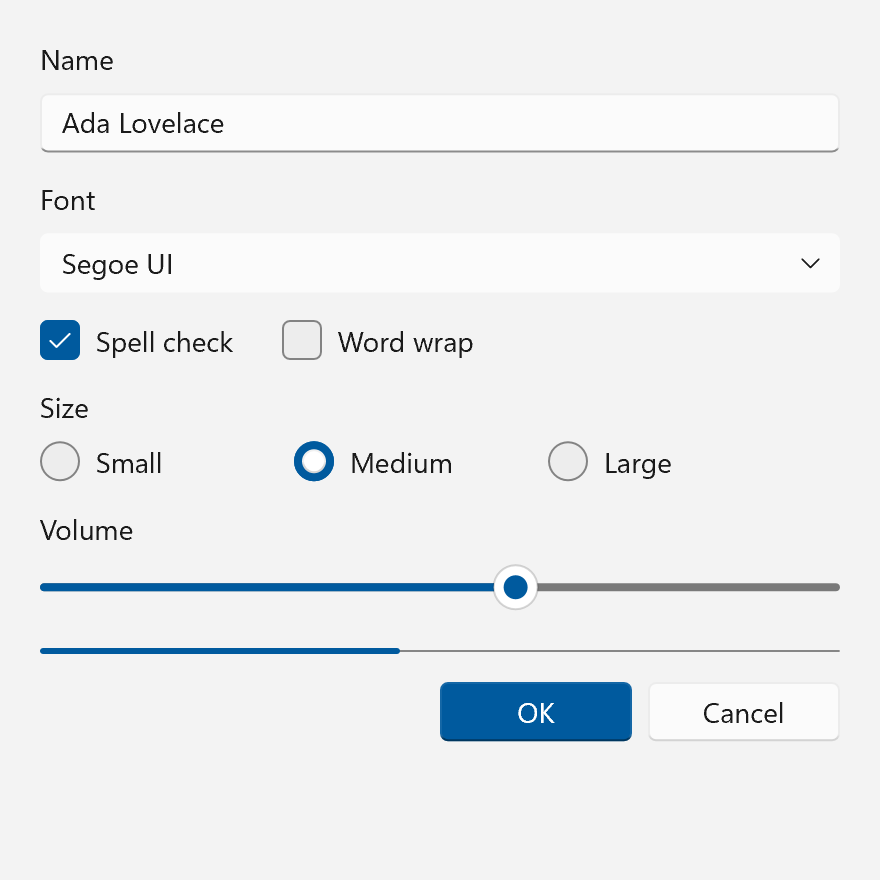
Fluent2 theme.Fluent 2 is the current Windows look, so almost none of it has to be approximated. The fonts ship with Windows 11, the values are in open source, and the few pieces that are not live in the OS, where an application can ask for them. The work is getting the details right, and knowing which parts are not drawing at all.
Exact From the Data Above
| Part | What makes it exact |
|---|---|
| Color tokens | Literal ARGB values for both themes. Mine the current controls/dev/ layer: the legacy dxaml/xcp/dxaml/themes/generic.xaml defines some of the same keys with other values (TextControlBorderThemeThickness is 2 there, 1 here), and the current layer wins. In the WinUI 2 line, _v1 files are the older Windows 10 set. |
| Geometry | Radii 4 and 8, the paddings and indicator sizes above, all plain numbers. |
| Contour gradient | A linear gradient in absolute units, 3 epx tall, flipped per theme. Any 2D API with gradient strokes draws it. |
| Shadows | The two-light recipe is closed-form. WinUI's nine-grid surface is a compositor workaround, not part of the look; a renderer that draws its own shadows applies the formula directly. |
| Focus | Two strokes outside the bounds, with the radius derived from the target's. |
| States | Brush swaps plus one structural change, the flat stroke on press. |
| Motion | Named durations and cubic Bezier curves. Entrances and exits need separate durations; a single "normal" duration cannot express the 2 : 1 asymmetry. |
| Accent fallback | The seven default constants, for when there is no OS to ask. |
What Needs the OS
- The accent ramp. Read all seven values from
UISettings::GetColorValue. There is no formula to reimplement, so any derived ramp, including the white/black blend WinUI's own test hook suggests, is an invention that disagrees with Windows on a user-chosen accent. An app that overrides only the base color has no OS ramp for it and has to pick a derivation knowingly. - Mica. DWM composes it behind the window when asked through
DWMWA_SYSTEMBACKDROP_TYPE(Windows 11 22H2 and later); the app extends the frame and draws a transparent page over it. The app never sees the pixels, so it cannot measure or capture the result, and the policy that turns the material off lives in the compositor. - Background acrylic. It samples the desktop behind the window, which a popup drawn inside the
window cannot see. In-app acrylic only samples the app's own content, so it can be implemented from
the recipe (blur, luminosity blend, tint, noise). Otherwise draw the documented fallback color:
#F9F9F9Light,#2C2C2CDark for the default brush. Windows itself draws that fallback often (transparency off, battery saver, inactive window), so it is a correct look in its own right. - Fonts. Segoe UI Variable and Segoe Fluent Icons ship with Windows 11 and are not redistributable. On Windows 10 the substitutes are static Segoe UI and Segoe MDL2 Assets, which lose the optical-size cuts but keep the codepoints. A renderer also has to decide line heights: WinUI leaves them to the font metrics, and the published 16/20/28/36/52/92 epx values are guidance.
- Page transitions. Their storyboards are OS-side; the published 150 ms, 300 ms and roughly 150 px are the most precise numbers available.
Behavior, Content and Layout
Some of what makes a window look like Windows 11 is not a theme value, and a theme alone cannot supply it:
- Focus is drawn only after keyboard or gamepad input and only while the window is active.
- Accent on one element per view, the base/content layer split, Mica only on long-lived windows, and the 8/12/16 epx composition gaps and 56 or 12 epx page margins are app composition.
- Materials fall back to solid colors on transparency, power and hardware conditions, which is a runtime policy, not a color.
- Motion curves describe transitions a control has to run; a static style has no motion.
- Reveal is not part of the current system. It still ships in WinUI 2.6 to 2.8, so a re-creation of the 2021 launch may include it; one of today's system should not.
High Contrast Today
The era's contrast mode is fully specified by the user's scheme: every token resolves to a Win32
system color (GetSysColor while SPI_GETHIGHCONTRAST reports a contrast theme), gradients
flatten, materials become solid Window, and there are no shadows (see
the color table). What stays is geometry: WinUI keeps the 4 and 8 epx radii, the
type ramp and the two-ring focus visual, with the rings in WindowText and Window. Hyperlink
underlines return. A faithful contrast mode therefore uses the same mechanism as Fluent 2 itself.
The Windows 10 predecessor, with 2/4 radii, a transparent button border and no lift gradient, is Fluent.
Sources
-
Microsoft, microsoft/microsoft-ui-xaml,
mainatd0c6705ec46d(2026-09-08), past the WinUI 3 1.8.2 tag:controls/dev/CommonStyles/Common_themeresources_any.xaml,Common_themeresources.xaml,CornerRadius_themeresources.xaml,TextBlock_themeresources.xamland every per-control*_themeresources.xaml. Launch-era comparisons use therelease/2.8branch, where_v1files are the Windows 10 set. ↩ -
Microsoft, WinUI 3 Gallery, microsoft/WinUI-Gallery,
mainat32a2503480ec(v2.9.3). ↩ -
Microsoft, Fluent 2 Design System: Design principles. https://fluent2.microsoft.design/design-principles ↩
-
Microsoft Learn, Windows 11 design principles. https://learn.microsoft.com/windows/apps/design/design-principles ↩
-
Microsoft Learn, Layering and elevation. https://learn.microsoft.com/windows/apps/design/signature-experiences/layering ↩↩
-
Microsoft Learn, Geometry in Windows 11. https://learn.microsoft.com/windows/apps/design/signature-experiences/geometry ↩
-
Microsoft Learn, Content basics and App silhouettes. https://learn.microsoft.com/windows/apps/design/basics/content-basics ↩
-
Contrast ratios computed from the Tier 1 token values with the WCAG relative-luminance formula, over
SolidBackgroundFillColorBase. Microsoft Learn, Accessible text requirements. https://learn.microsoft.com/windows/apps/design/accessibility/accessible-text-requirements ↩ -
microsoft/microsoft-ui-xaml,
dxaml/xcp/components/theminginterop/SystemThemingInterop.cpp(GetSystemVariantAccentColor, the fallback constants) anddxaml/xcp/components/theming/FrameworkTheming.cpp(RebuildColorAndBrushResources). ↩ -
Microsoft Learn, Contrast themes. https://learn.microsoft.com/windows/apps/design/accessibility/high-contrast-themes ↩
-
Microsoft Learn, Typography in Windows. https://learn.microsoft.com/windows/apps/design/signature-experiences/typography ↩
-
Microsoft Learn, Segoe Fluent Icons font. https://learn.microsoft.com/windows/apps/design/style/segoe-fluent-icons-font ↩
-
Microsoft Learn, Screen sizes and breakpoints. https://learn.microsoft.com/windows/apps/design/layout/screen-sizes-and-breakpoints-for-responsive-design ↩
-
microsoft/microsoft-ui-xaml,
dxaml/xcp/components/graphics/inc/DropShadowRecipe.h(GetDropShadowRecipe),dxaml/xcp/components/graphics/ThemeShadow.cppanddxaml/xcp/core/core/elements/Popup.cpp. ↩ -
microsoft/microsoft-ui-xaml,
dxaml/xcp/components/FocusRect/(FocusRectManager.cpp),dxaml/xcp/core/dll/focusmgr.cppanddxaml/xcp/components/DependencyObject/DependencyProperty.cpp. ↩ -
microsoft/microsoft-ui-xaml,
dev/Materials/Backdrop/MicaController.cpp,SystemBackdropBrushFactory.cpp,controls/dev/Materials/Acrylic/AcrylicBrush_themeresources.xamlandcontrols/dev/Lights/MaterialHelper.cpp. Microsoft Learn, Mica material and Acrylic material. https://learn.microsoft.com/windows/apps/design/style/mica, https://learn.microsoft.com/windows/apps/design/style/acrylic ↩ -
microsoft/microsoft-ui-xaml,
Common_themeresources_any.xaml(named durations andControlFastOutSlowInKeySpline),Expander.xaml,ListViewItem_themeresources.xaml,ProgressBar.xaml,SharedTransitionAnimations.cpp,SimplePropertiesMetadata.g.h,ConnectedAnimationService.cpp,ConnectedAnimation.cpp,GravityConnectedAnimationConfiguration_partial.cppandDirectConnectedAnimationConfiguration_partial.cpp. Microsoft Learn, Timing and easing and Motion in practice. https://learn.microsoft.com/windows/apps/design/motion/timing-and-easing, https://learn.microsoft.com/windows/apps/develop/motion/motion-in-practice ↩